How reports can work for you
Capsule offers a number of reporting features which make it extremely easy to get insights about your business, that can help you to both optimize your sales and manage productivity. Ways you can use reports include:
- Pipeline Insights - The sales reporting in Capsule allows you to accurately forecast your upcoming sales, find leaks in your sales process and compare which users/teams are converting the most leads.
- Performance Management - Use activity reporting to gain insight into user performance and areas to improve by understanding the activities completed by each user in a particular time frame.
- New Starter Onboarding - Monitor the number of activities new starters are completing and identify if they are struggling in any areas. Having visibility of the activity notes also gives you a quick view into how they are communicating with customers and whether their approach is on-brand.
Where to find reports
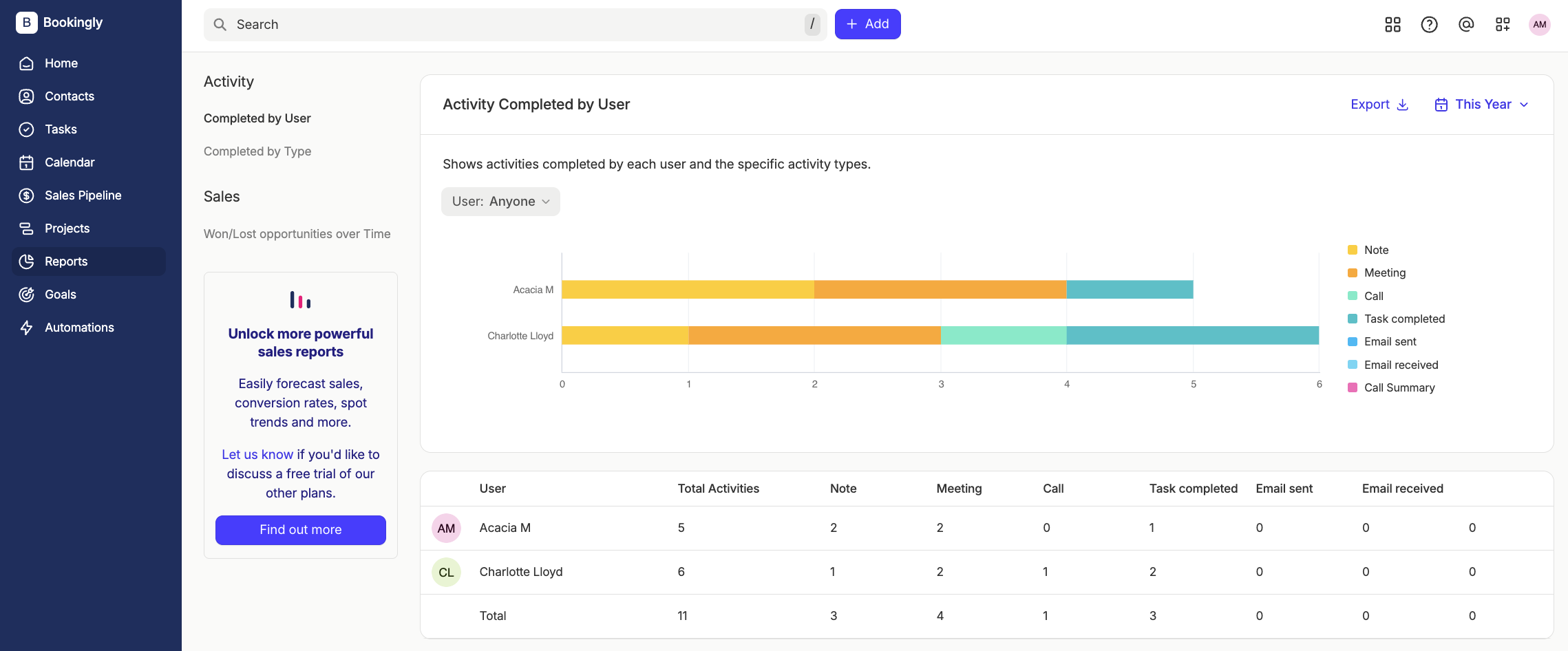
If you’re on the Starter plan, Activity and Sales Reporting can be found on the dedicated Reports page . Here you will find the following reports:

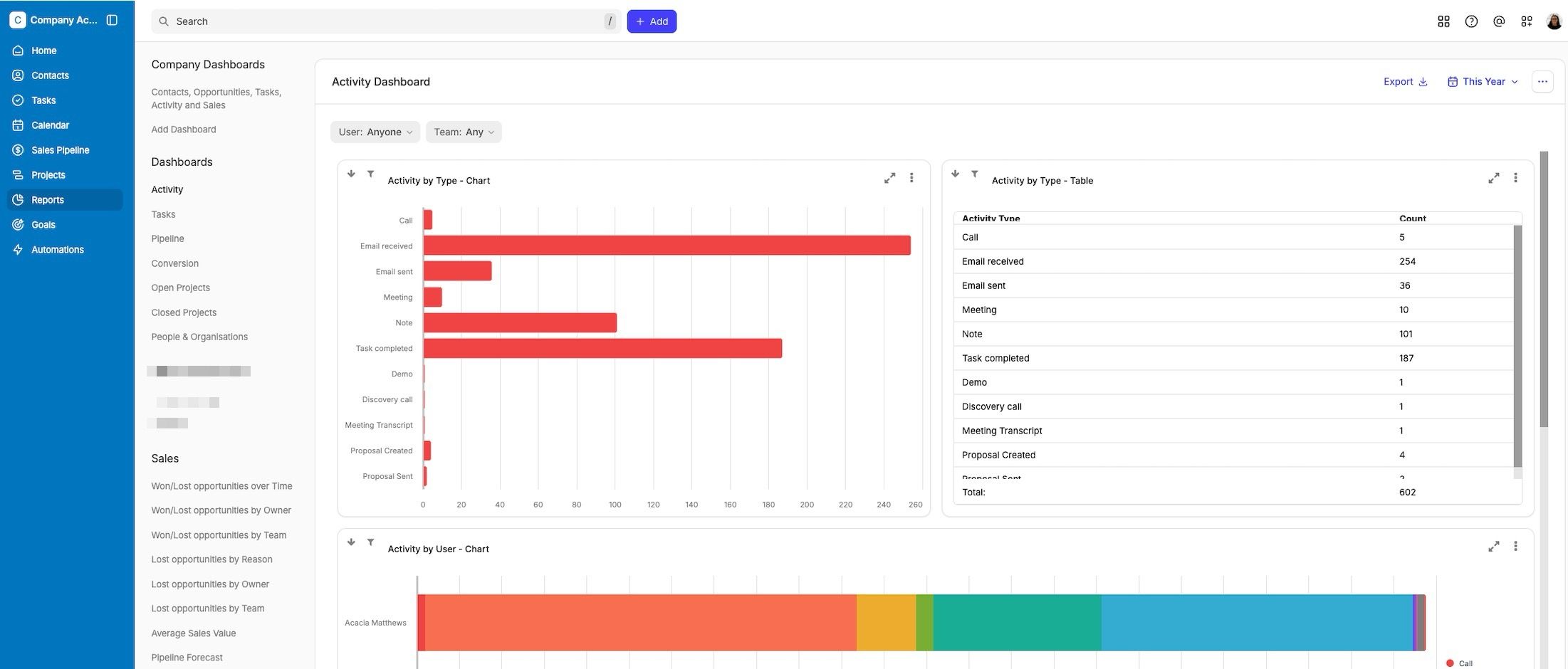
If you're on the Growth, Advanced or Ultimate plan, Activity and Sales Reporting can be found on the dedicated Reports page . Here you will find:
- Reporting Dashboards
- Standard and Enhanced Sales Reports

Understanding reports
The reports in Capsule display data for all Users on your account. You can filter reports by individual User or by Team, using the filters available at the top of the screen.
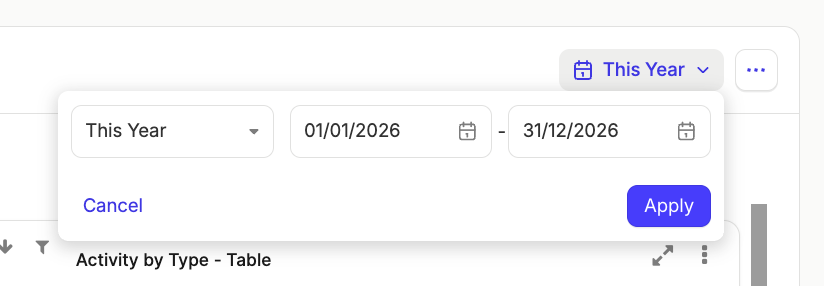
All reports can also be filtered by date. There are several standard time filters you can choose from such as a week, a month or a quarter. You can even define a custom timeframe. To filter by date, click the date picker at the top-right of the screen and select your preferred date range.


Each of the top-level reports can be broken down to gain a deeper insight into your company’s performance. To do that, simply click on the bars within the bar chart to see a breakdown of the report. You can also click on specific rows in the results table to open up a report breakdown.
action: click on bars in chart to see breakdown
How to filter report breakdowns by date
When you view a report breakdown it uses the date filter that was applied to the top level report. If you’d like to adjust the time period the report breakdown applies to:
- Close the report breakdown view.
- Adjust the time period the report applies to using the date filters in the top right corner. You can use existing filters such as This Year and This Quarter, or you can apply a custom date range. Click 'Apply'.
- Open the report breakdown once more and the new date filter will be applied.

Time based report breakdowns such as Won/Lost Opportunities Over Time, use a combination of the top level date filter and also the month/quarter selected. For example, when the top level date filter is set to ‘This Year’, if you click on the January bar chart only Opportunities from January this year will be displayed.
Who can view reports?
The Reports page is visible to all users and each report can be viewed by all users on your account.
On plans with user access controls, all users still have access to the top level reports, however Restricted users can only view reports relating to records assigned to them. Learn more about how to control user access on the those plans.
Understanding report breakdowns and user access controls
When viewing a report breakdown, you can click through to take you to the related task/entry for the Activity Reports and to the related Opportunities for the Sales Reports.
- If you're on the Starter plan: Click the row in the report breakdown.
- If you're on the Growth, Advanced or Ultimate plan: Click the ‘Link’ button in the report breakdown.

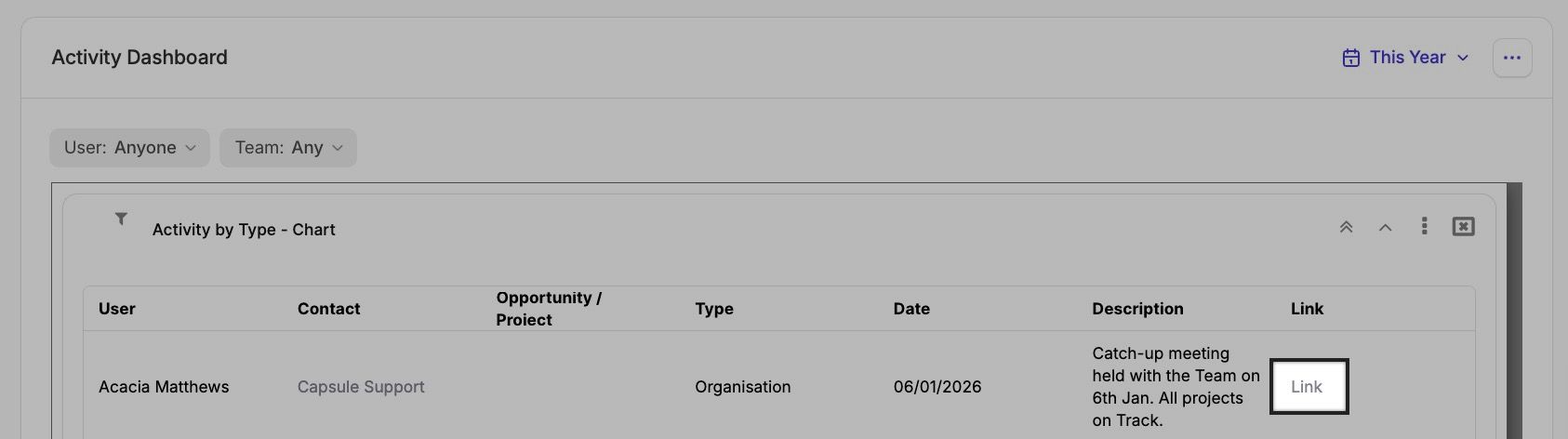
When viewing report breakdowns:
- If you do not have access to the record the activity entry relates to directly, no information will be displayed.
- If you have access to the Person the activity is recorded on but not their linked Organization, the Organization will be displayed as 'Private'.
- If you have access to an Opportunity or Project but do not have access to the linked Contact, the Contact will be displayed as 'Private'.
Filtering for lists of Opportunities
In addition to the built in Sales Reports Capsule also lets you filter for lists of Opportunities based on a range of filters to help you identify just the Opportunities you need. To create a filtered Opportunity list:
- Go to the Sales Pipeline.
- Click on the list icon
- From the list page, use one of the standard filters or click on More filters to filter for one of the many options.

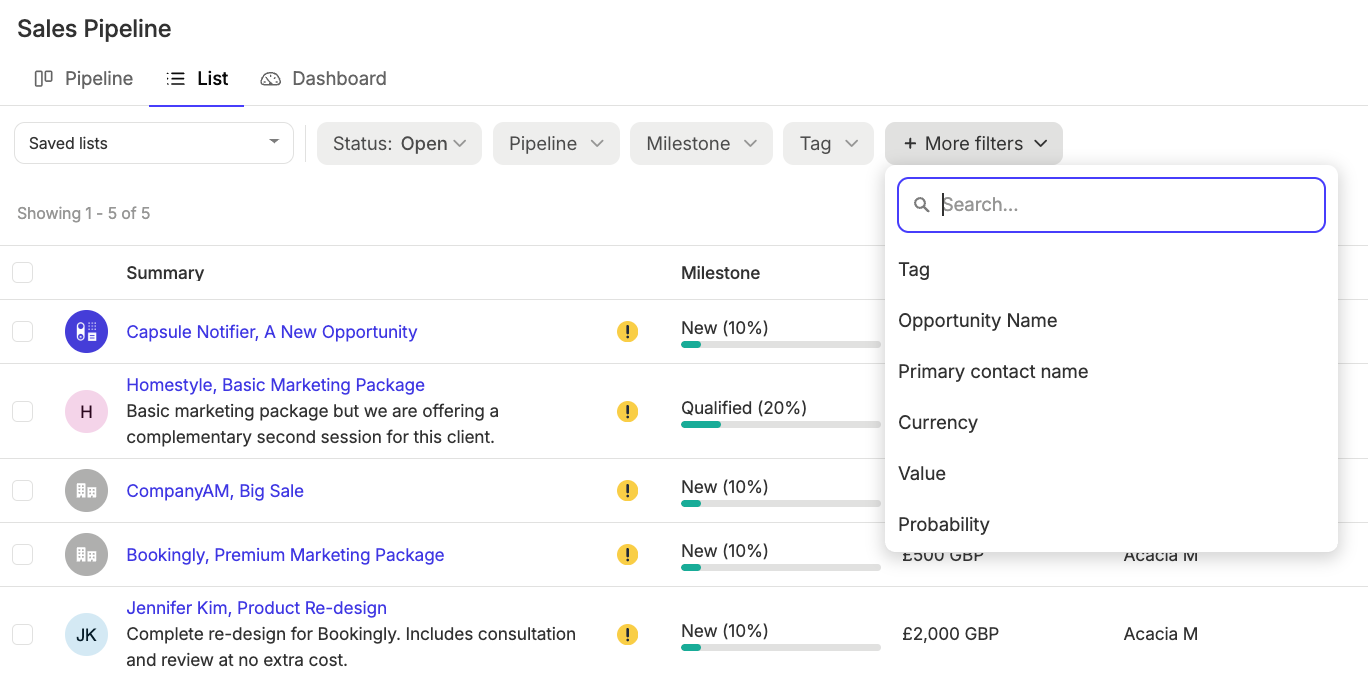
Some popular filters include:
- [Expected close On][is within next] [30] days
- [Added On][is within last] [7] days
- [Is stale][yes]
- [Value][is greater than] [10,000]
Below we go through some of the more popular reports that you can view and create.
Built in Sales Lists
Capsule has a number of standard lists you can access by going to the Sales Pipeline > Saved Lists:

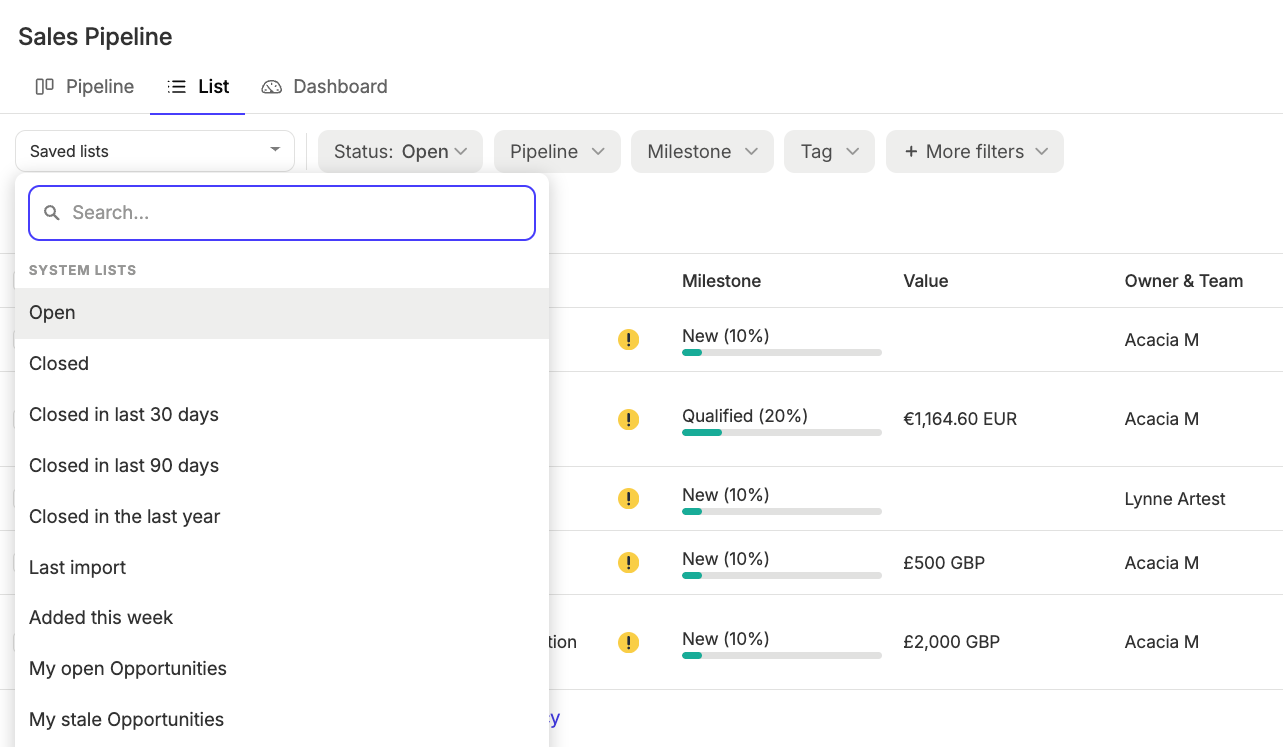
You decide how you would like to use this list. For example, you may want to export the list or tag all the Opportunities.
Finding inactive Opportunities
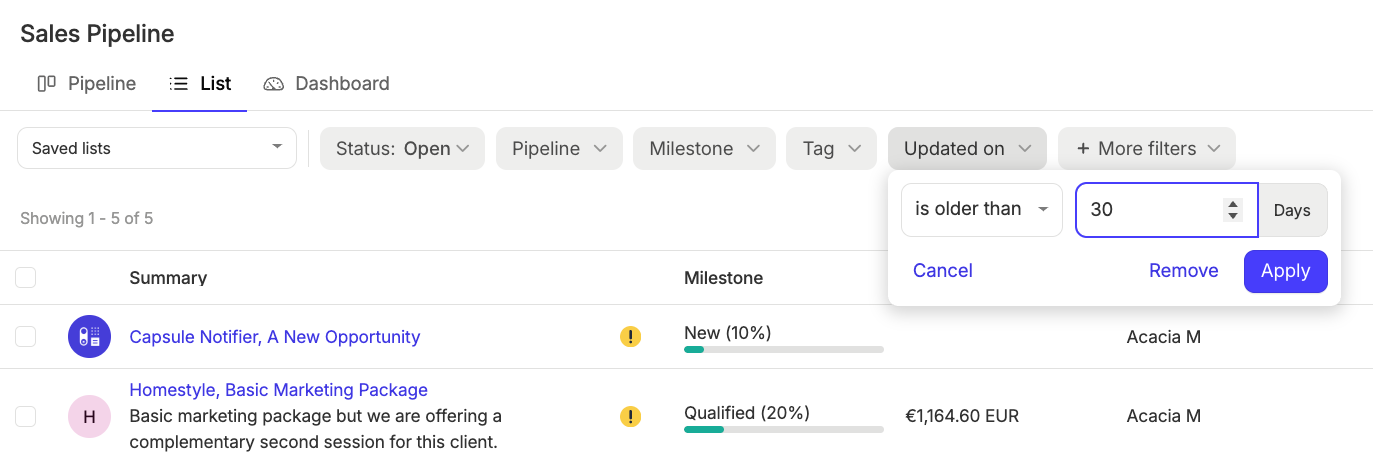
Instead of a standard list, you may wish to create your own list by adding filters. For example, creating a list for following up on Opportunities that have had no action in the last 30 days:
- Go to your Sales PipelineList
- Click on More filters
- Filter for [Updated on][is older than] [30] days.

Saving a filtered List of Opportunities
After filtering your Opportunities, to save a list for future use:
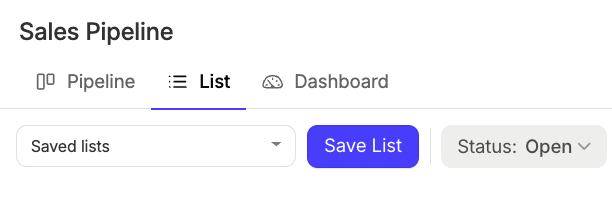
- Select the button to Save list

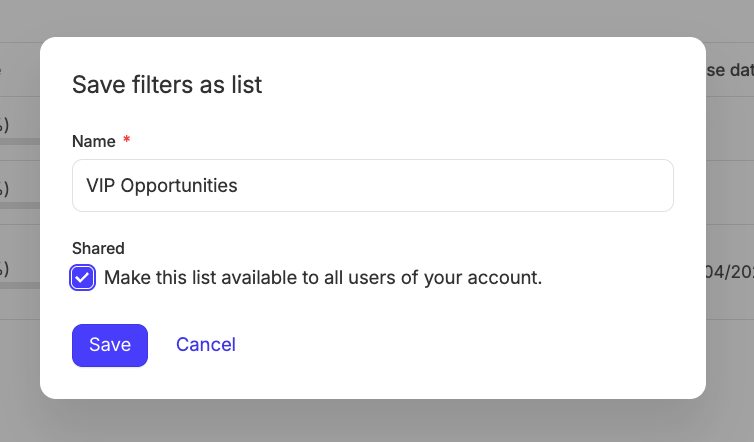
2. Name the list and then decide if you'd like the saved list to be shared with the rest of the team or just be visible to yourself

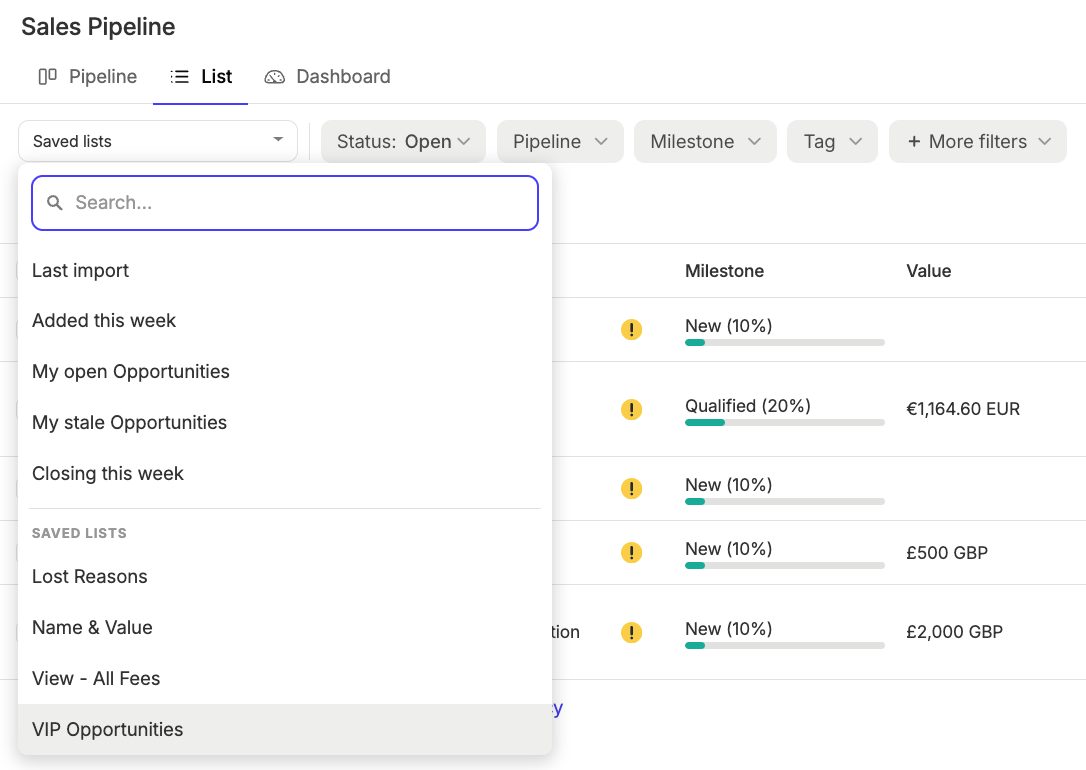
3. Click Save and you will now be able to see the saved list displayed in the drop down menu

Find Opportunities based on their value
It can sometimes be useful to find all your Opportunities that are over a certain value. To use that:
- Go to your Sales PipelineList
- Click on More filters
- Filter for [Value][is greater than] [USD -$][1000]

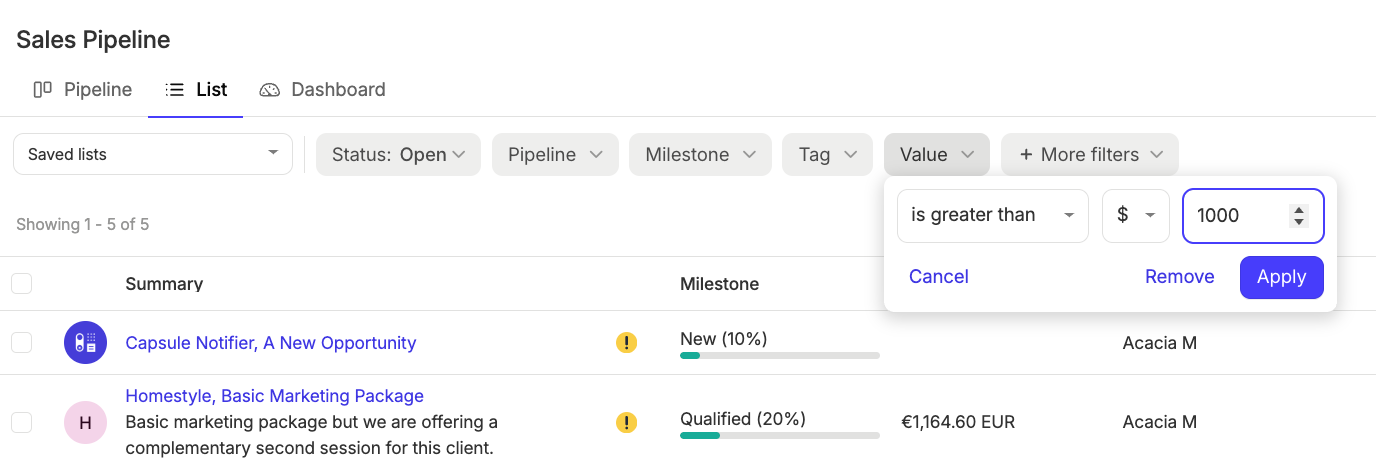
This will find all your Opportunities where the total expected value is over $1,000. That includes Opportunities that are setup with recurring revenue e.g. where the expected value is $300/month over 4 months.
Filter Opportunities by their currency
If you're working with multiple currencies then it can also be helpful to further narrow down the list to only opportunities with a specific currency. To do that:
- Go to your Sales PipelineList
- Click on More filters
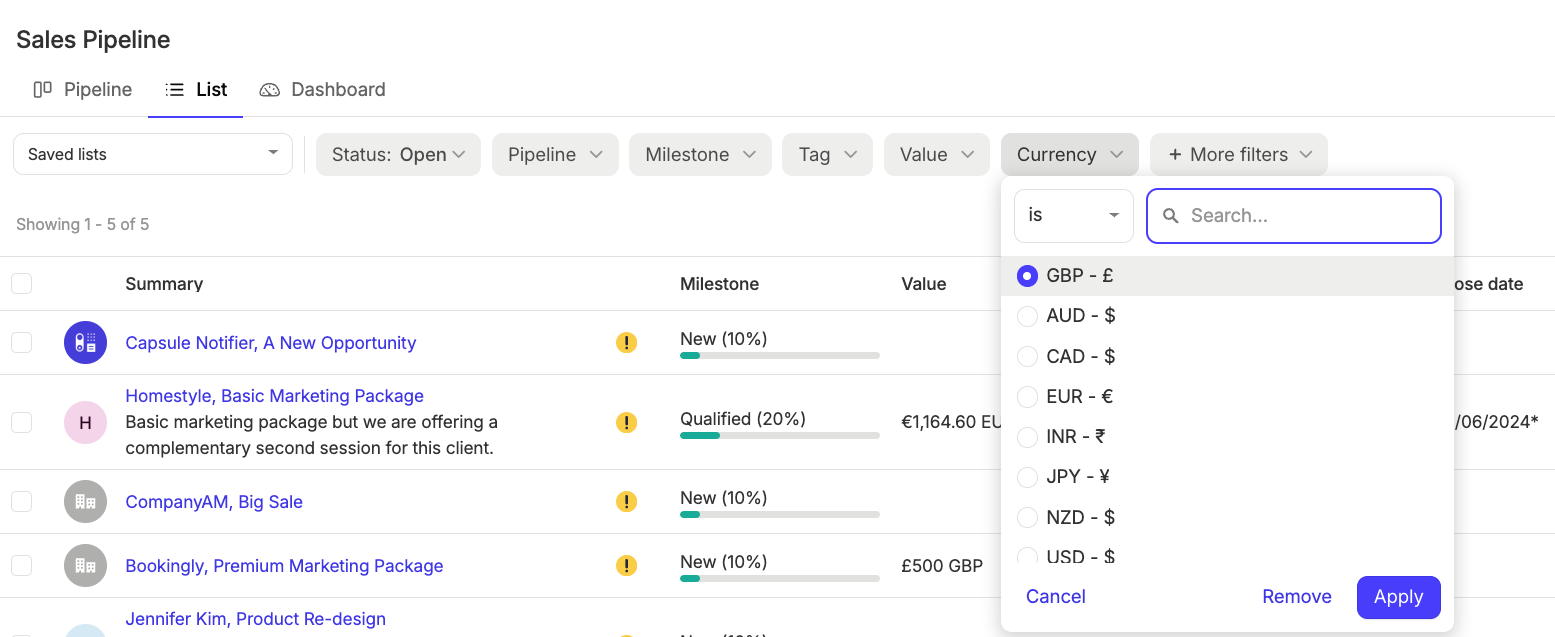
- Filter for [Currency][is] [GBP -£]