Get more from your data with Capsule’s AI Connectors. Currently available for Claude and ChatGPT.

What is MCP?
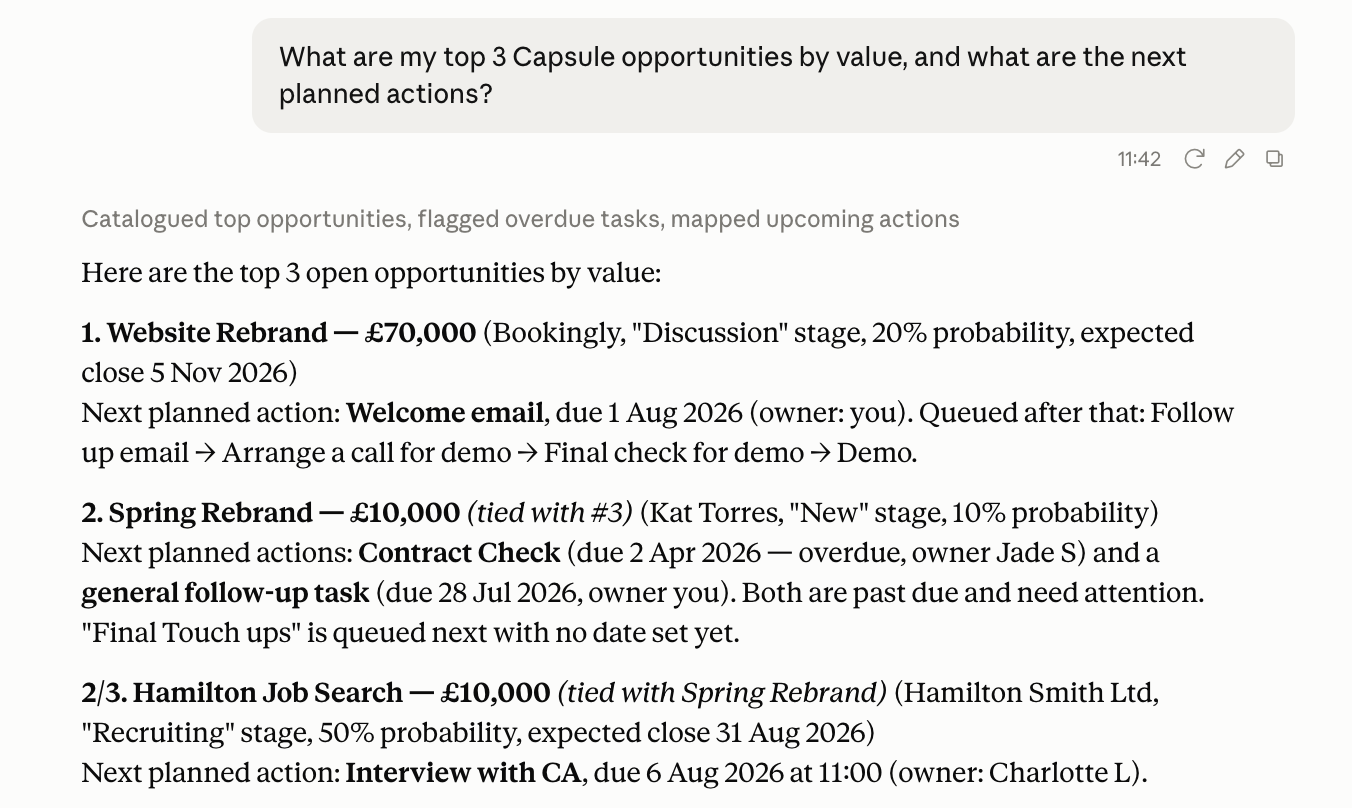
MCP (Model Context Protocol) is an open standard that lets AI assistants like Claude or ChatGPT read and update data in the tools you already use. Capsule runs its own MCP server, which acts as a bridge between the AI tool and your Capsule account. Once connected, you can ask your chosen AI tool to look up Contacts, Opportunities, Projects and more, directly in a conversation, instead of logging in and searching for the information yourself.
Here are a few examples of what you might ask it once connected:
- "How many opportunities were won this quarter, and what was their total value?"
- "Which users have created the most opportunities in the last 30 days?"
- "How many new contacts were added this month, and where did they come from?"
- "Which organizations have had no logged activity in the past 90 days?"
How to connect your AI tool to Capsule
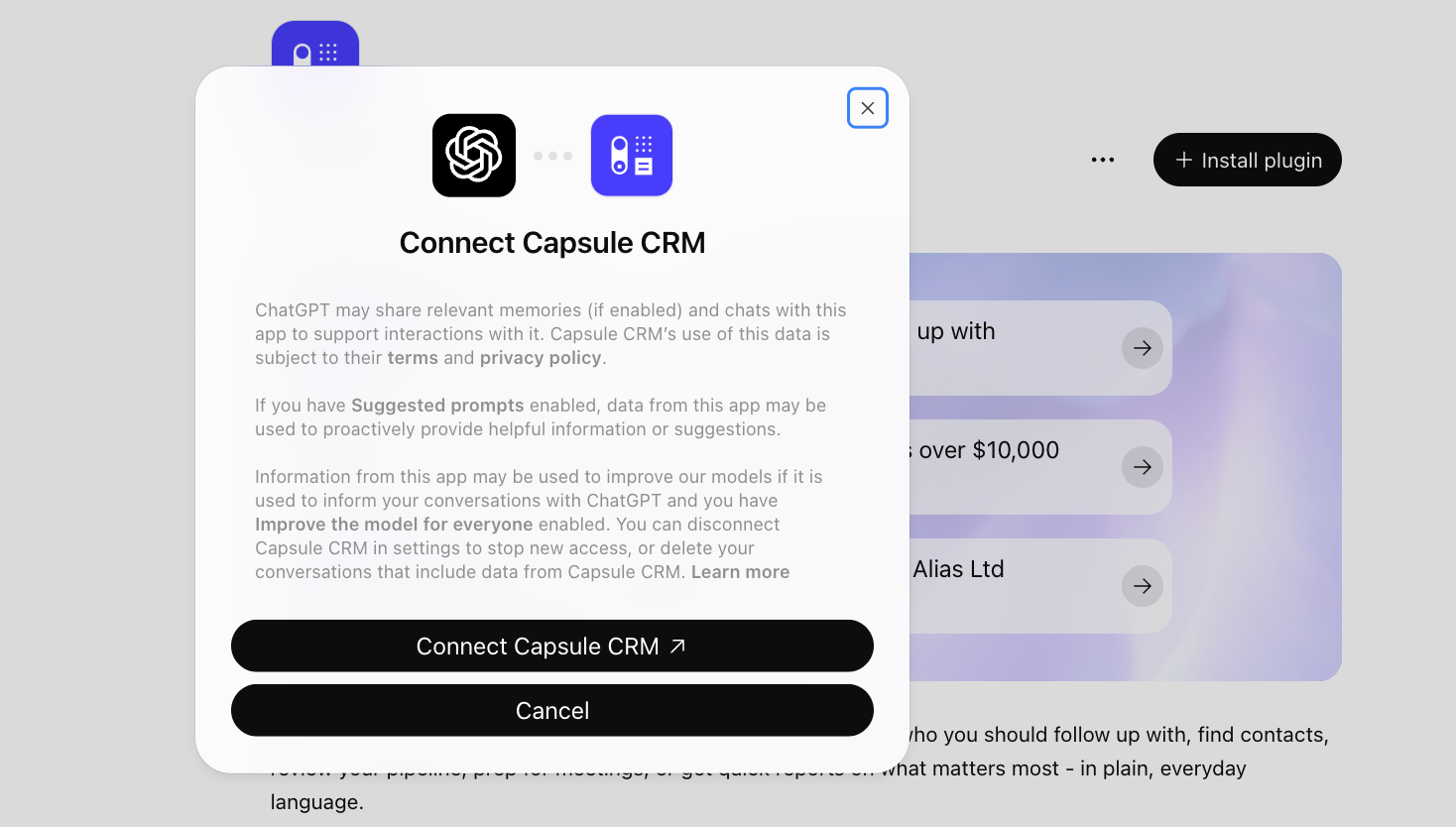
Click on the right tab below to view the set-up instructions:
The Claude connector is currently in Beta. To request access:
- Go to Account SettingsIntegrations
- Search for and click on Claude
- Click to Request Early Access
- This will open up a new email in your default email client to support@capsulecrm.com.
- Once you have sent the email, one of the Team will get back to you.

What can AI do with Capsule?
Your AI tool connects to Capsule using a fixed set of tools, each covering a specific area of your account.
Choose a tab to see what AI can do with each area of your account.
Create your Contacts, Opportunities and Projects, update them, and look them up or search across them. Also see who owns what.
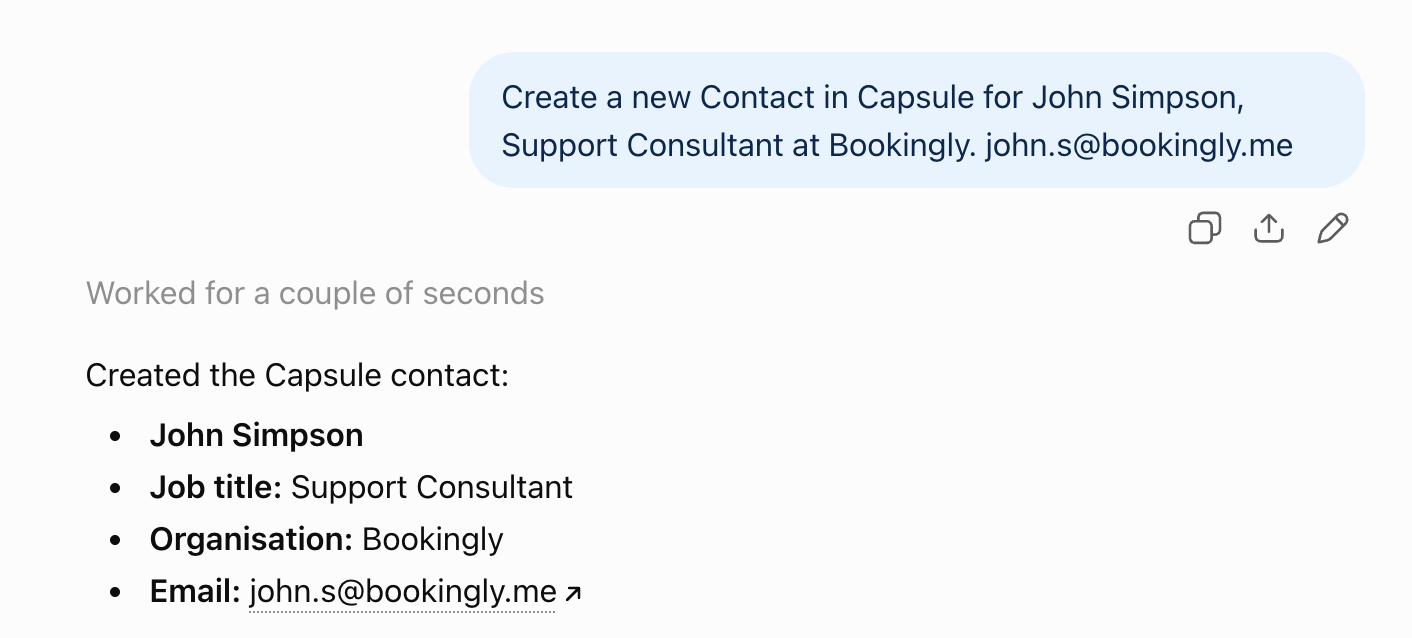
Creating records
Create individual Contacts, Opportunities and Projects for you.
You could ask: "Create an Opportunity called 'Website redesign' for Acme Corp in the Sales Pipeline, worth $5,000."



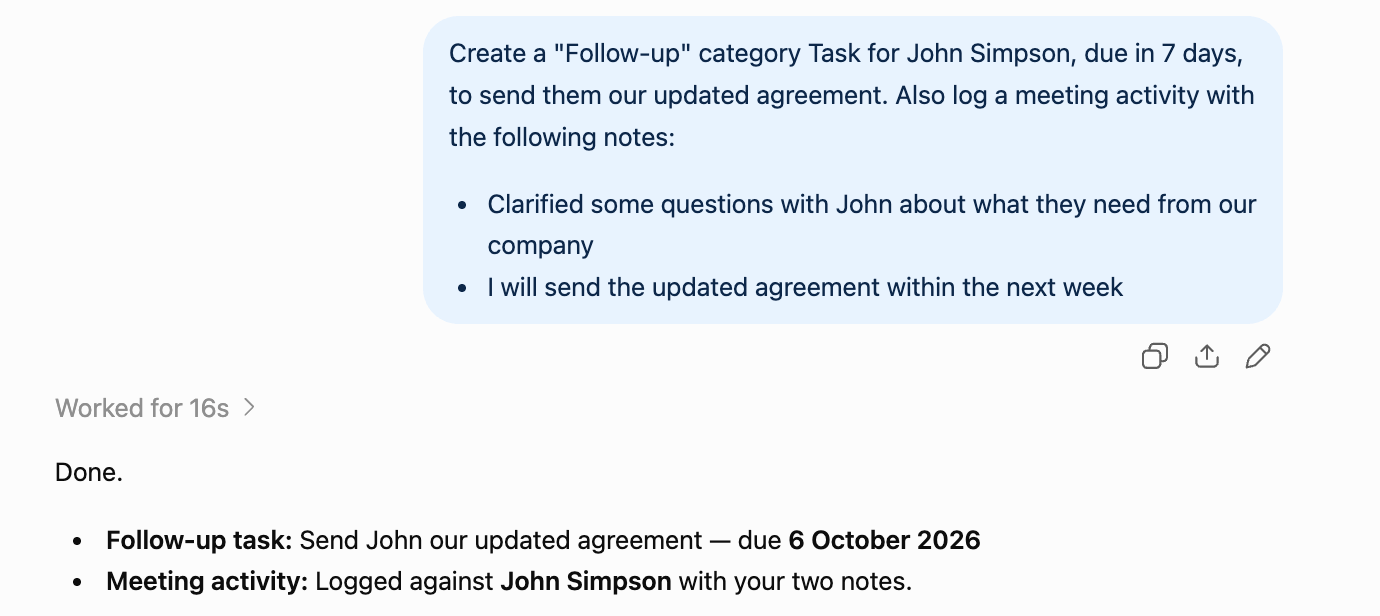
Updating records
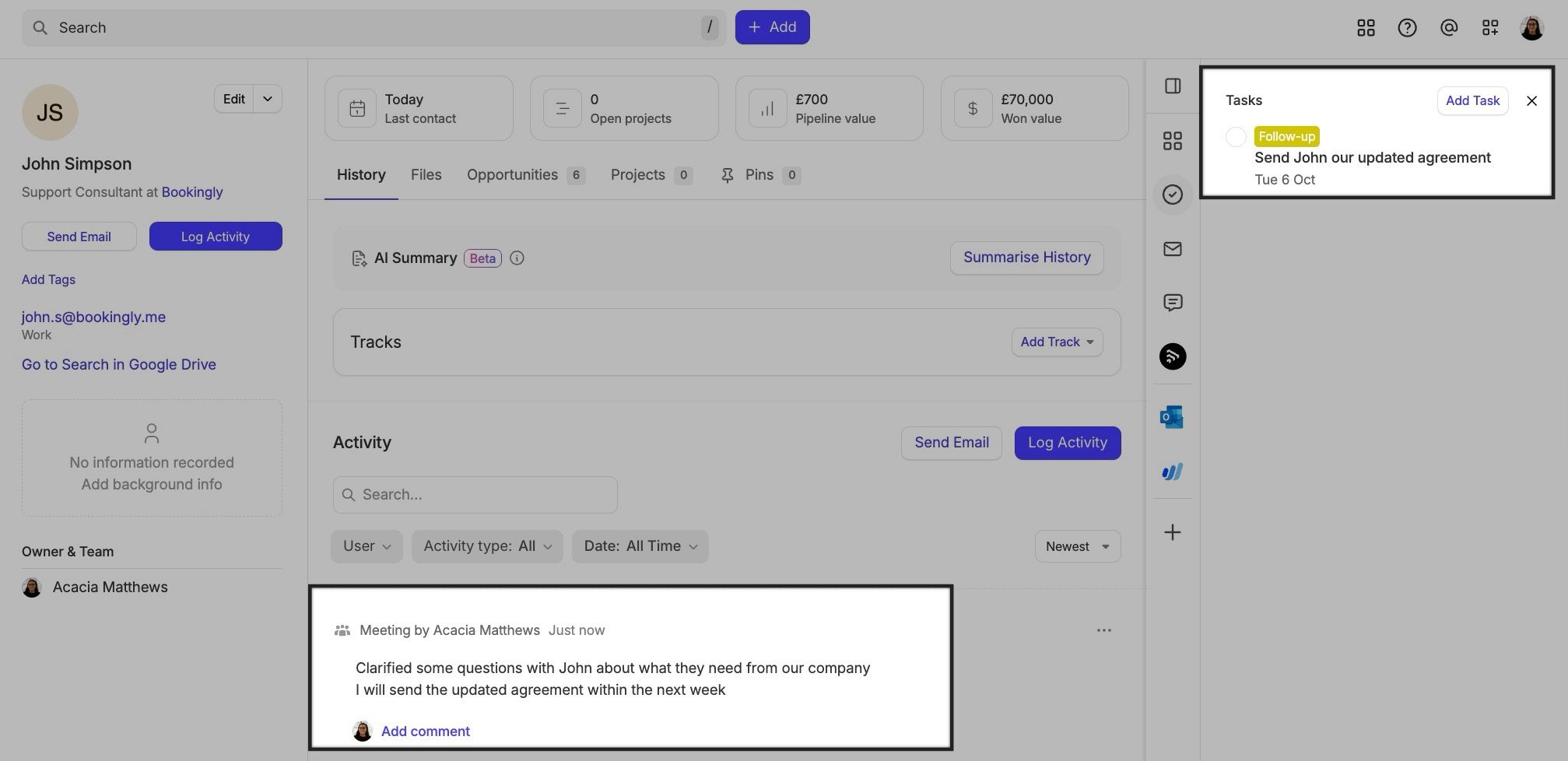
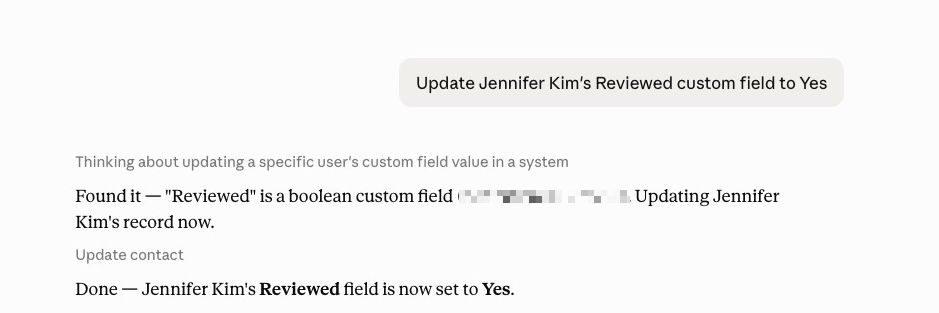
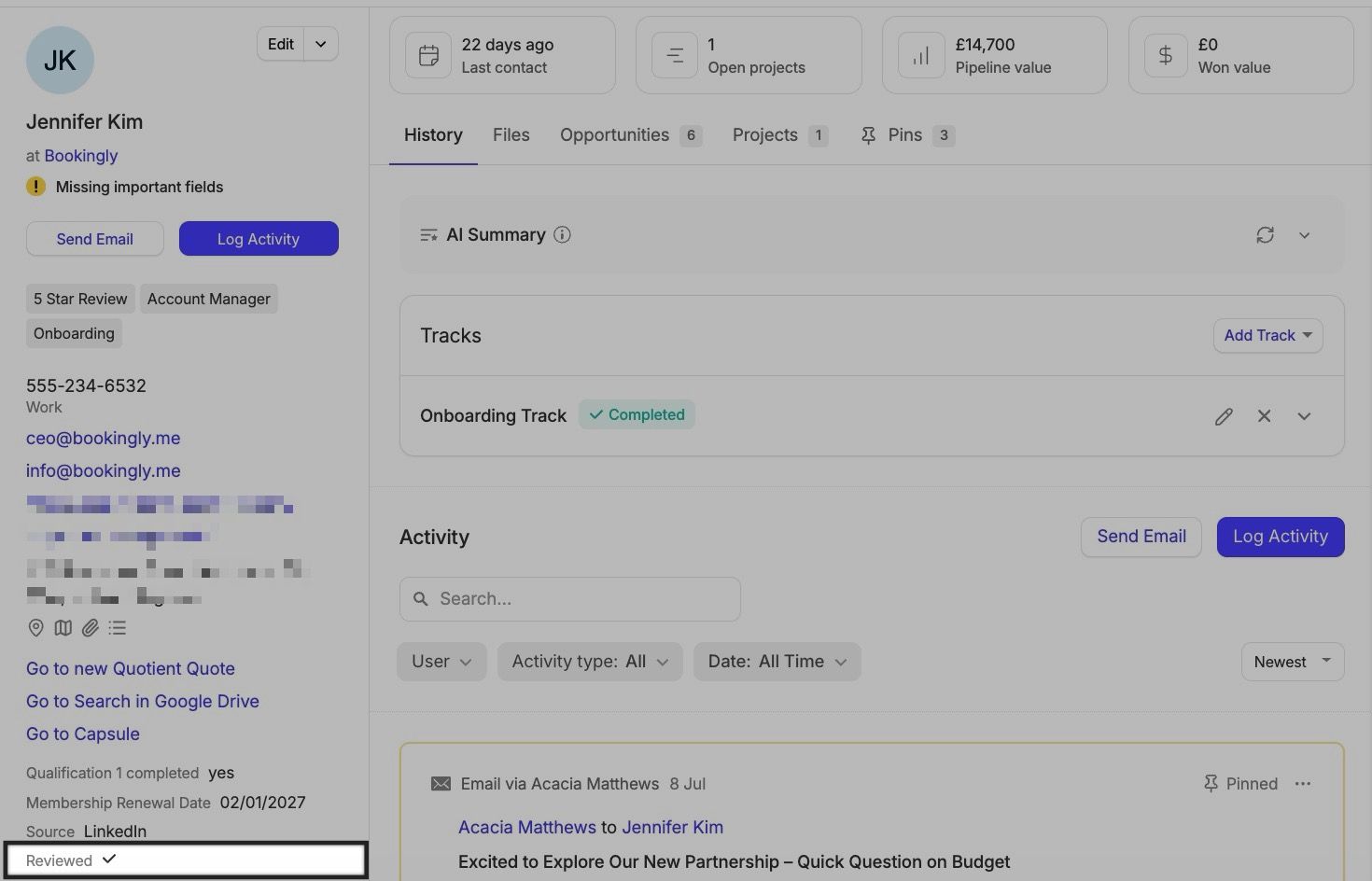
You can also update Contacts, Opportunities and Projects that already exist, one record at a time. Add Tags to a Contact, Opportunity or Project, move an Opportunity to a different Milestone (including marking it won or lost, with a Lost Reason), or move a Project to a different Stage and close or reopen it.
For example, you could ask: "Mark the Acme Corp opportunity as won."
Looking up records
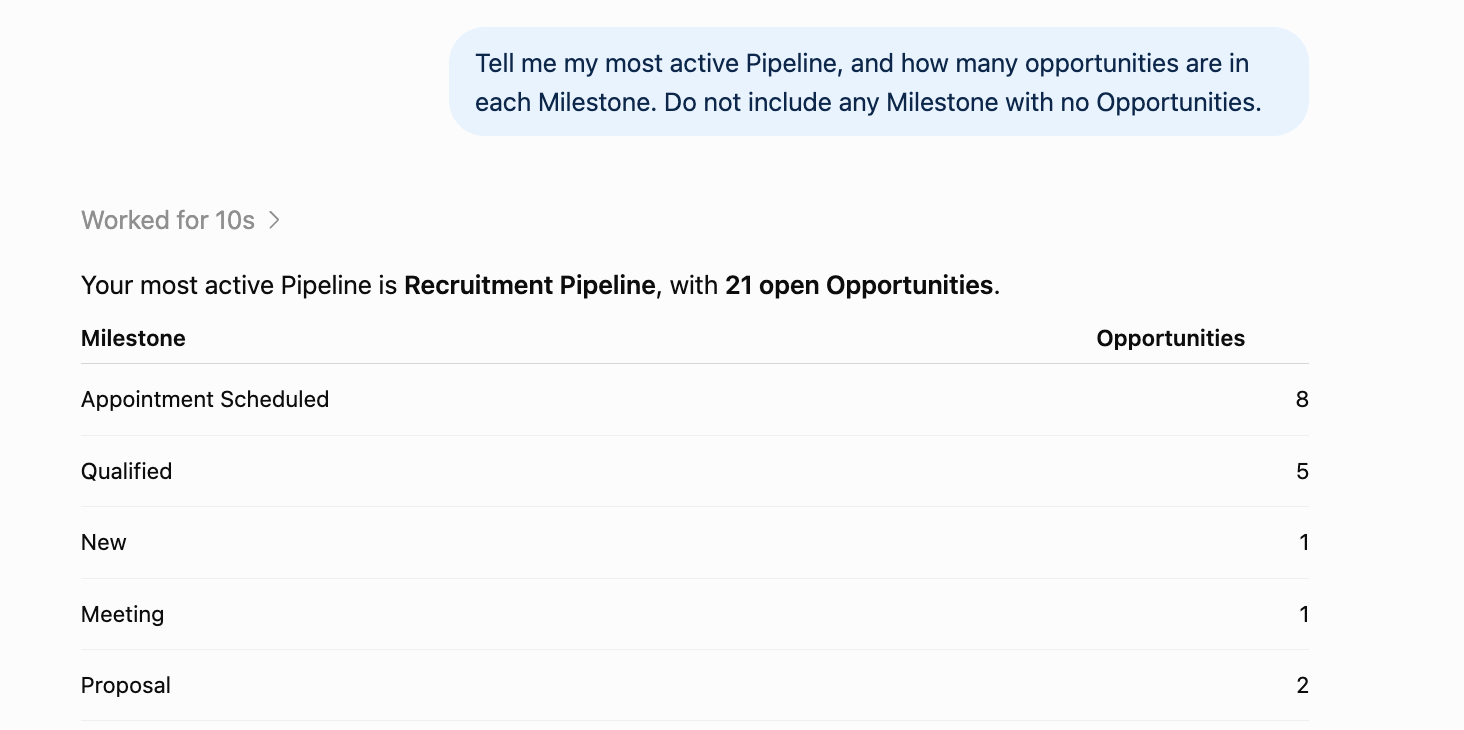
Look up individual Contacts, Opportunities and Projects, or search and filter across them (and your Activities and Tasks) the same way you would inside Capsule. Just describe what you're looking for and AI will work out the details.
You could keep it simple and ask: "What's the expected close date on the Acme Corp opportunity?" or expand with something like: "List all Opportunities in the Sales Pipeline worth over $10,000 that are expected to close this month, sorted by expected close date."
For Tasks, you could ask: "Which open Tasks are overdue and assigned to Jane?"
Owners, Users & Teams
Look up the Users and Teams on your account, including which User it's currently authenticated as - handy for questions about who owns what or how your account is structured.
Try something quick like "Which Team is Jane part of?", or something broader like "List every Team on our account, along with who's a member of each one."





How AI tools connect and what they can see
Your connected AI tool requires every request to carry a valid authorization token - there's no way to connect without one. If a request arrives without one, Capsule rejects it and points the client back to the connection details it needs to authenticate. In practice, this means:
- The AI tool authenticates using your own Capsule login, not a shared service account.
- Whatever your login can access in Capsule - including any Access Controls restricting you to certain Teams or records - is exactly what AI can access. Nothing more.
- Read access allows your AI tool to view data in your CRM, while write access is currently limited to creating Contacts, Opportunities, Projects, Tasks and Activities, updating Custom Fields and adding Tags, moving Opportunities between Milestones (including marking them won or lost) and Projects between Stages, closing or reopening Projects, and completing Tasks.
How is my Capsule data used?
To answer your questions, Capsule will securely share the record data you request with our trusted sub-processors.
Troubleshooting
A few common issues you might run into when using an AI tool with Capsule, and what to do about them.
Connection isn't authorized / can't connect
Your AI tool needs to complete its authorization step before any requests will succeed - an incomplete or expired authorization will be rejected. Reconnect through your AI tool and complete the login prompt again.
AI can't see a record I expect it to
Your AI tool can only see records your own Capsule login has access to. If a record belongs to a Team you're not part of, ask an Administrator to update your Access Controls.
Updated the wrong value, or I want to undo an update
AI tools overwrite values directly and don't keep a change history of their own. Check the record in Capsule and correct it there, or ask your AI tool to set a Custom Field value, Milestone, Stage or open/closed status back. Tags can only be added by AI tools, and a completed Task can't be reopened by them, so make those changes in Capsule.
I created something by mistake
AI tools can create records but can't delete them. To remove one, delete it directly in Capsule, the same way you would any other record.
I want to stop my AI tool from accessing Capsule
Revoke the connection from your AI tool, or ask your Capsule Administrator to do so. This immediately invalidates the token it was using - no further requests will succeed.