The Projects timeline view gives you a clear visual overview of your projects, helping you see project durations, progress, and workloads across your team in one place. Use it to monitor active projects, identify potential bottlenecks, and keep delivery on track.
Accessing the Projects timeline view
To open the Projects timeline view:
- Go to Projects
- Select the Timeline view
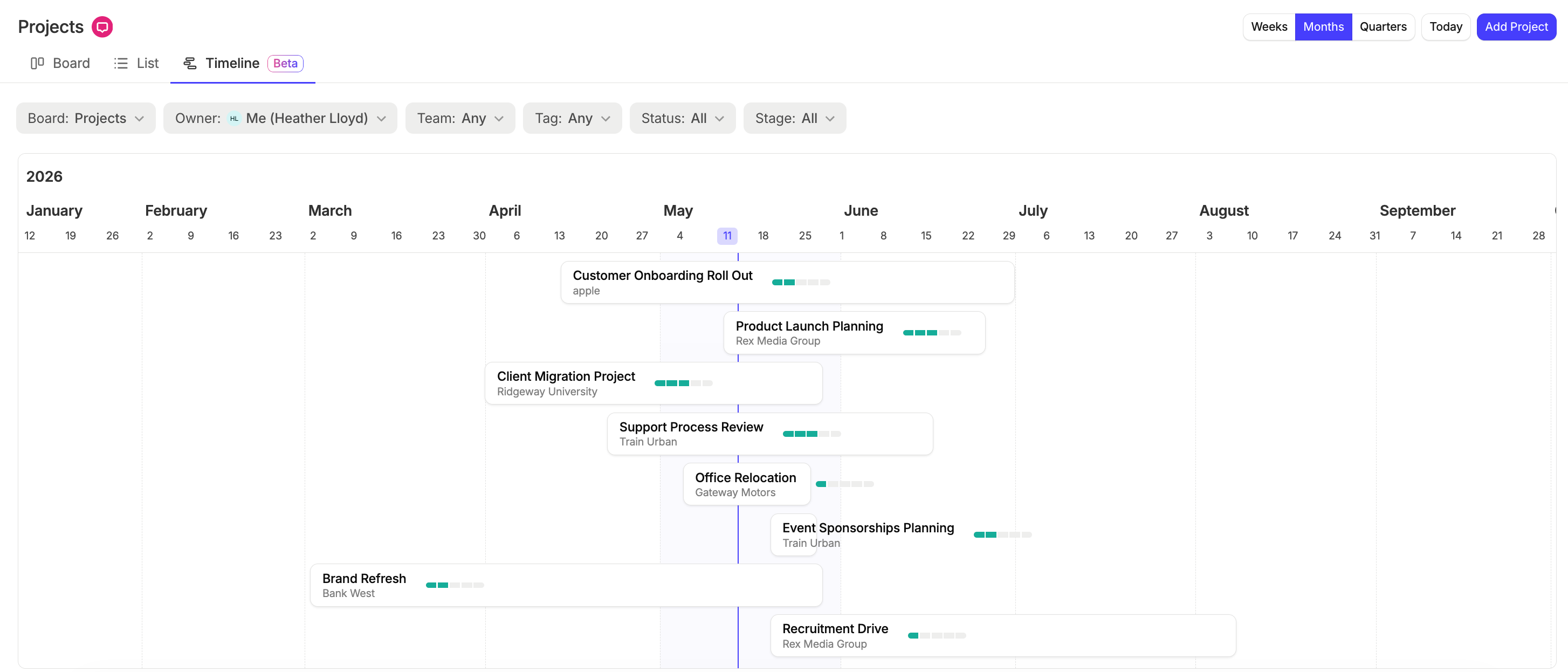
From here, you’ll see your projects displayed across a timeline based on their start and expected close dates.

Understanding the timeline view
Each project appears as a timeline bar showing:
- The project duration between the start date and expected close date
- The current progress of the project
The timeline view makes it easier to understand:
- Which projects are running at the same time
- How long projects are expected to take
- Where workloads may overlap across your team
Hover over a project to view a quick summary including:
- Project status
- Project stage
- Start date
- Expected close date
Filtering Projects
Use the filters at the top of the page to focus on specific projects.
You can filter by:
- Board
- Owner
- Team
- Tag
- Status
- Stage
This helps you narrow down the timeline to the projects most relevant to you or your team.
Changing the timeline view
You can adjust the timeline scale depending on the level of detail you want to see.
Choose between:
- Weeks
- Months
- Quarters
Select Today to quickly return to the current date on the timeline.
Updating dates using drag and drop
You can drag and drop projects within the timeline to quickly adjust their schedule.
Moving a project will automatically update its:
- Start date
- Expected close date
This allows you to quickly reschedule projects directly from the timeline view.
short recording of show casing the drag and drop feature, to move projects along the timeline
Keeping your timeline view accurate
The Projects timeline view uses your project start dates and expected close dates to display projects correctly.
To get the most value from the timeline, make sure your projects are regularly updated with:
- Accurate start dates
- Expected close dates
- Current stages and statuses
Keeping this information up to date helps your team plan workloads, manage delivery timelines, and maintain visibility across projects.