
Already using ChatGPT or Claude for work? You can connect your AI assistant to Capsule CRM and start asking questions about your customer data!
Want to know which opportunities are closing soon? Ask your assistant to check Capsule.
Need to create a follow-up task after a meeting? You can do that from the same conversation, provided your connection supports the action.
Capsule MCP makes these interactions possible without copying customer records between applications. Setup depends on which AI tool you're using. ChatGPT has an official Capsule plugin, Claude has its own connector, and compatible AI applications can connect through Capsule's remote MCP server.
Here's how to get everything connected.
Quick answer: To connect Capsule MCP to an AI assistant, you'll need Capsule's Growth, Advanced, or Ultimate plan. ChatGPT users can install the official Capsule CRM plugin and authorize their account. Claude users can connect through the Claude connector where available, while other compatible MCP clients require a custom OAuth connection to https://mcp-server.capsulecrm.com/mcp
What is Capsule MCP?
Capsule MCP is a connection between Capsule CRM and compatible AI assistants, built using Model Context Protocol.

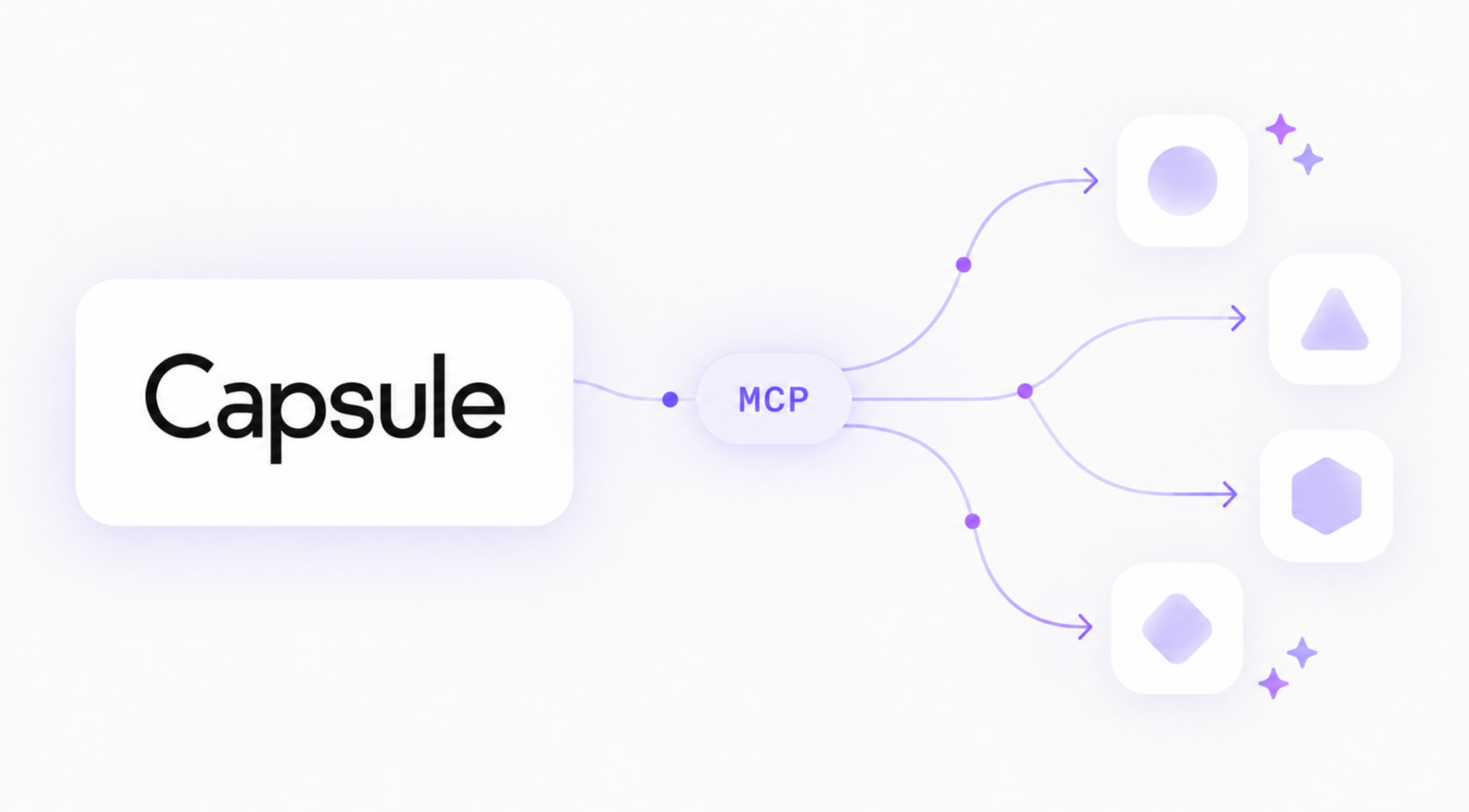
Once connected, your assistant can retrieve customer information and perform supported CRM actions through a conversation. Capsule provides the MCP server, which makes selected CRM functions available to the AI tool.
Your customer records continue to live in Capsule. An assistant accesses them when a request requires information from your account, within the permissions granted to your user.
You might ask ChatGPT to find opportunities expected to close this month or use Claude to prepare for a customer meeting. Supported connections also allow you to create contacts and tasks or add notes without opening the relevant record manually.
MCP has become an option for accessing CRM information from tools people already use throughout the day.
Which AI tools can you connect to Capsule MCP?
Capsule supports several connection methods, although the installation process and availability differ.
How to connect Capsule MCP to different AI tools
The setup process depends on which AI tool you're using.
- ChatGPT: Use the official Capsule CRM plugin. Install the plugin and authorize access to your Capsule account.
- Claude: Connect through the official Capsule connector, where available. You may need beta access to enable the integration.
- Cursor: Configure a custom remote MCP connection, provided your version supports it. You'll need a registered OAuth application and a compatible MCP client.
- Other AI tools: Connect through Capsule's custom remote MCP server. Your tool must support remote HTTP MCP connections, OAuth 2.1 authentication and pre-registered OAuth clients.
Before starting, check which connection method your AI tool supports. Native integrations generally require less manual configuration than custom MCP connections.
ChatGPT offers the most straightforward documented installation process. You can find the Capsule plugin directly in ChatGPT and authorize access using your Capsule account.
Claude has a dedicated Capsule connector, although Capsule's support documentation still describes a beta access process. Availability should be checked in your account before beginning.
Other AI applications may connect through Capsule's remote MCP server if they meet the technical requirements. Supporting MCP in general doesn't guarantee that an application supports Capsule's authentication process.
How to connect Capsule CRM to ChatGPT
Capsule provides an official ChatGPT plugin built on its MCP server. Installation doesn't require writing code or setting up a separate OAuth application.

You'll need a Capsule account on an eligible plan. Standard users may also need their Capsule administrator to enable the integration before connecting.
Step 1: Find the Capsule CRM plugin
Open ChatGPT and go to Plugins in the left panel. Search for Capsule CRM and open its listing.
You can also begin in Capsule by opening Account Settings → Integrations → ChatGPT.
If you're an account administrator, locate the ChatGPT integration and select Install Plugin. Capsule will direct you to the corresponding ChatGPT page.
Step 2: Install the plugin
Select Install plugin in ChatGPT. You may be prompted to sign in before completing installation.
Choose the option to connect your Capsule CRM account.
ChatGPT will then direct you through the authorization process.
Step 3: Enter your Capsule subdomain
Capsule uses a unique subdomain for each account.
For example, if your Capsule address is:
maroliedigital.capsulecrm.com
Your subdomain is maroliedigital.
Enter the appropriate subdomain when prompted and continue to the Capsule authorization screen.
Make sure you're connecting the intended account, especially if you manage more than one Capsule workspace!
Step 4: Authorize the connection
Sign in with your Capsule credentials and review the requested access. Select Allow to complete authorization.
ChatGPT will then be able to use the Capsule tools available to your account.
Your existing Capsule permissions still apply. If certain records are restricted in Capsule, connecting ChatGPT doesn't make them available to you.
Step 5: Test the connection
Open a new conversation and try asking something that requires information from Capsule.
Example prompt:
"Using Capsule CRM, show me my open opportunities that are expected to close this month."
If the connection is working, ChatGPT should retrieve information through Capsule's available tools.
Check the results against your CRM, particularly when you're using the integration for the first time.
You can find the official walkthrough in How to connect ChatGPT to Capsule CRM.
How to connect Claude to Capsule CRM
Claude also supports working with Capsule through MCP, including retrieving account information and completing permitted CRM actions.

Capsule has documented an official connector for Claude.
Check whether the Claude connector is available
Open Claude and navigate to Settings → Connectors.
Browse available connectors and search for Capsule CRM. If the official connector is available to your account, select it and follow the authorization process.
You'll be asked to sign in to Capsule and grant access before Claude can use your CRM information. On Claude Team and Enterprise accounts, an organization administrator may need to enable the connector before members can use it.
Request access if the connector isn't available
Capsule's support documentation provides an early-access process:
- Open Capsule and navigate to Account Settings → Integrations.
- Find the Claude integration.
- Select Request Early Access.
- Send the request to Capsule's support team.
Once access has been confirmed, follow the installation instructions provided for your account.
You can also review Capsule's Claude integration page for product information and connection guidance.
Test Claude with a read-only request
After connecting, start with a question that doesn't change any records.
Example prompt:
"Find Acme Corp in Capsule and summarize its open opportunities and outstanding tasks."
Review the response and check that Claude is retrieving information from the correct Capsule account.
Once you're comfortable with the connection, you can try supported write operations, subject to your approval settings.
How to connect Capsule MCP to other AI tools
Want to use an AI client that doesn't have a ready-made Capsule connector?
Capsule supports custom connections through its hosted MCP server. Configuring one requires a little more technical knowledge, but you don't need to deploy your own Capsule MCP server.

Capsule published its custom remote connection documentation in September 2026. The process involves checking your AI application's compatibility, registering an OAuth application and adding Capsule's server details to the AI client.
Step 1: Check your AI tool supports Capsule MCP
Before configuring anything, verify that your AI client meets Capsule's requirements.
To connect your AI client to Capsule MCP, it must support remote MCP servers over HTTP and use OAuth 2.1 for authentication.
Your AI client must also allow you to manually enter a client ID and client secret and support pre-registered OAuth clients. These requirements must be met before you can establish a connection with Capsule MCP.
Capsule doesn't currently support authentication using personal API tokens for its remote MCP server.
AI clients that only support local MCP servers or require Dynamic Client Registration without accepting manually configured credentials won't work with this connection method.
Check the documentation for your AI application before proceeding.
Step 2: Create an OAuth application in Capsule
You'll need to register an OAuth application through Capsule's Developer Hub.
Before starting, find your AI client's callback URL, sometimes called the redirect URL. You'll usually find it in the client's instructions for adding a remote MCP server.
The callback URL must match exactly when registering your application.
Open Capsule's Developer Hub and follow the process for registering a new application. You'll need a GitHub account to sign in to the Developer Hub.
When completing the application details, provide:
- Name: A recognizable name for your connection, such as Cursor.
- Description: An optional explanation of what the application does.
- Application URL: The website of the AI tool you're connecting.
- Redirect URL: The exact callback URL supplied by the AI client.
- Contact email: An address Capsule can use to contact you.
- Application type: Web Application.
After saving, copy the generated client ID and client secret.
Keep the client secret private. It should only be entered into the appropriate configuration area of your trusted AI client.
Step 3: Add Capsule's remote MCP server
Open your AI application's settings and look for an option to add a custom or remote MCP server.
Some tools may call the feature Connectors or Custom integrations.
Enter your Capsule MCP server details:
To configure the connection, enter the following information in your AI client's MCP settings:
- Connection name: Capsule
- MCP server URL:
https://mcp-server.capsulecrm.com/mcp - Client ID: Your registered OAuth client ID
- Client secret: Your registered OAuth client secret
Once you've entered these details, save the configuration and follow the OAuth authentication process to connect your AI client to Capsule CRM.
The exact fields and settings depend on your AI application.
Capsule's developer documentation uses Claude → Settings → Connectors → Add custom connector as an example of where remote MCP configuration may be available.
Once configured, select Connect. Your AI client should redirect you to Capsule to sign in and approve access. After authorization, the Capsule MCP tools should become available in your AI application.
Step 4: Confirm the connection works
Start with a simple read-only request.
"Search Capsule for my open opportunities and show their names and expected close dates."
If your AI client can access the appropriate tools, it should be able to retrieve matching data.
You can then test other permitted operations. When testing write actions, use a clearly identified record and review the proposed change before confirming it.
For the full technical procedure, including authentication requirements, refer to Capsule's Custom MCP Connections guide.
What can you do after connecting Capsule MCP?
When your AI assistant is connected, you can start working with the records already stored in Capsule.
A few requests are particularly easy to test because they use familiar CRM information. Here are some prompts you can try once you've connected Capsule MCP to your AI client:
- Check your pipeline: "Which opportunities are expected to close this month?"
- Prepare for a customer call: "Summarize recent activity for Acme Corp."
- Review overdue work: "Show my overdue Capsule tasks."
- Add a contact: "Create a contact for Sarah Jones using these details."
- Record an interaction: "Add these meeting notes to Acme Corp's opportunity."
- Plan a follow-up: "Create a task to contact Acme Corp on October 29, 2026."
These examples cover common CRM workflows, from finding information to creating records and managing follow-ups. They're also a practical way to check whether your Capsule MCP connection is working as expected.
Start with records you're familiar with, so you can recognize whether the assistant is returning accurate information. After confirming the connection works, you can try more complex requests, such as searching across multiple opportunities or creating related records.
Capsule also supports updating values in existing Custom Fields through MCP. However, not every CRM operation is available, and the assistant cannot freely edit standard fields or delete existing records.
For a detailed breakdown, see Capsule's AI Connectors Tool Reference.
How to manage permissions and keep your Capsule data secure
Connecting an AI assistant to your CRM means allowing another application to request customer information.
Capsule's MCP connection uses authentication and applies the permissions assigned to your Capsule account. Your AI assistant can only access the records available to the user who authorized the connection.
With ChatGPT, you can configure when approval is required before connected tools run. Claude also offers controls for individual connector actions, depending on the available connection and account settings.
Review these permissions before using write operations, particularly if colleagues share responsibility for the same customer records.
An assistant may be able to create a new contact or add a note, but Capsule restricts modifications to existing records. Its current MCP tools don't permit record deletion.
Data handling also depends on the AI provider. Review your provider's privacy settings and retention policies before using the connection with customer information.
Can you disconnect Capsule MCP?
Yes! Disconnecting the AI application is an option if you no longer need access.
In ChatGPT, open Settings → Plugins, select Capsule CRM and choose Disconnect.
Claude users can manage connected applications under Settings → Connectors.
Custom MCP connections can be removed from the AI application. Capsule also allows the associated OAuth application to be deleted, revoking that registration.
If an employee leaves your organization or no longer needs CRM access, review both their Capsule permissions and any relevant AI connections.
Capsule MCP not connecting? Common problems and fixes
Connection problems usually arise during authentication or when an AI client doesn't support Capsule's requirements.
Before rebuilding the configuration, check where the process stopped.
- Capsule doesn't appear in ChatGPT: Search the plugin directory and check your workspace permissions.
- Authentication doesn't start: Verify the client ID, secret, and redirect URL.
- Connection succeeds but tools are missing: Confirm that your Capsule subscription is eligible.
- Custom MCP connection fails: Check remote HTTP support, OAuth 2.1, and client pre-registration.
- Connection stops working later: Check whether your AI client refreshes OAuth tokens.
- Records seem to be missing: Verify the signed-in Capsule user and their access permissions.
- Expected edit actions aren't available: Check the MCP Tool Reference to see which operations are supported.
Redirect URL mismatches are a particularly common issue with custom MCP connections. Even a small difference from the callback URL supplied by your AI client can prevent authentication.
If a connection stops working after initially succeeding, token refresh may be involved. Most supported clients handle token renewal automatically, but some configurations may require you to disconnect and authorize the account again.
Capsule's Custom MCP Connections documentation includes further troubleshooting guidance.
Do you need a paid plan to use Capsule MCP?
Capsule AI Connectors are available on Growth, Advanced and Ultimate plans.
Your AI provider may have separate subscription requirements or usage limits. ChatGPT and Claude both manage access according to their own accounts and workspace policies.
Custom remote MCP connections also require Capsule Growth or above, along with an AI client that supports the necessary authentication and connection methods.
There's no need to purchase a separate Capsule MCP server or maintain your own hosted instance when using Capsule's supported remote connection.
You can compare the available Capsule subscriptions on the pricing page.
Start using Capsule MCP with your AI assistant
Connecting Capsule to an AI tool gives you another way to work with customer records without moving information out of your CRM manually.
If you're already using ChatGPT, the official Capsule plugin offers a straightforward starting point. Claude has its own connection process, while businesses with compatible AI clients can use Capsule's remote MCP server and OAuth setup.
Our advice? Connect one tool and begin with a question you already know how to answer in Capsule. Check the response against your CRM before moving on to tasks that create or update records.
Explore the Capsule CRM and ChatGPT integration or review the AI Connectors setup guide to get started.