
Your sales team had 20 customer conversations last week.
How many made it into your CRM with accurate notes and the right next steps?
Probably fewer than you'd like.
Updating records tends to fall behind when people are busy selling, and catching up isn't particularly appealing after a full day of calls.
Missing information creates problems beyond a messy database. Colleagues make decisions using old account details, and managers struggle to understand what's happening across the pipeline.
Model Context Protocol (MCP) can take some of the work out of maintaining customer records. It connects AI assistants to your CRM, allowing you to retrieve information and complete supported actions through natural-language requests.
Quick answer: MCP lets compatible AI assistants access CRM records and perform permitted actions, including creating contacts, recording meeting notes and scheduling follow-ups. Capsule MCP also supports updating existing Custom Field values. You can complete these actions through ChatGPT while keeping your customer information in Capsule.
Why does CRM data get outdated?
Ask a salesperson why their CRM records aren't current, and you'll probably hear something about not having enough time.
Fair enough. Updating an opportunity after a call might take only a few minutes, but there are emails to answer, proposals to prepare and customers waiting for a response. CRM administration slips down the priority list.
Sometimes the problem comes from inconsistent habits. One employee records every conversation, while another updates opportunities only when a deal changes stages. Both might be doing excellent sales work, but the differences become apparent when someone else needs to use their records. A manager preparing a forecast may struggle to confirm close dates, while a colleague covering an account may lack the context needed to continue a conversation.
CRM data tends to become unreliable in small, everyday ways. A salesperson forgets to log a meeting, someone creates a contact that already exists or an opportunity sits untouched after an important customer conversation.
Some problems are easier to spot than others:
- Missing meeting notes leave gaps in customer histories. Colleagues can see that an account exists, but they may have little idea what was discussed or agreed.
- Duplicate contacts split customer information across multiple records, making it harder to follow conversations and understand the relationship.
- Outdated opportunity details make pipeline reviews and sales forecasts less reliable, particularly when expected close dates or deal information haven't been updated.
- Forgotten follow-ups happen when agreed actions never make it into the task list. Customers may end up waiting for something the team promised to deliver.
- Incomplete Custom Fields affect filtering and reporting when important values are missing or no longer accurate.
- Unlogged interactions can make active customers appear inactive because recent emails or conversations haven't been recorded in the CRM.
These issues often build up gradually. A single missing note may seem harmless, but repeated omissions make it harder for the team to trust the information they're working with.
Improving contact management requires consistent habits across the team. People need to know which details to record, but the process also needs to fit into their working day.
MCP gives employees another way to enter information without repeatedly navigating CRM screens.
How can MCP improve CRM data quality?
Model Context Protocol allows AI assistants to communicate with external applications through a shared standard. When your CRM provides an MCP server, compatible assistants can access information and perform actions that the connection makes available.
Say you've just finished a discovery call. You could open ChatGPT, find the prospect's existing Capsule record and ask the assistant to log your notes. If you've agreed to send a proposal next week, you can create the follow-up task during the same conversation.
Capsule stores the resulting records, so colleagues can access them through the CRM as usual.
A few checks are still necessary. AI assistants can misunderstand instructions, particularly when customer names are similar or meeting notes contain ambiguous dates. Asking the assistant to display the intended change before saving it gives you an opportunity to catch mistakes.
MCP also has technical limits. A connection might support creating a task but not editing the owner of an existing opportunity. Before relying on an AI assistant to maintain your records, check which operations your CRM actually exposes.
How to keep CRM records updated with MCP
Keeping CRM records accurate shouldn't mean adding more admin work to the team's day. A good starting point is to focus on tasks that frequently get delayed, particularly recording customer conversations and keeping opportunity details current.
MCP can make these tasks easier to manage through an AI assistant. Depending on the activity, it can help update records directly or identify gaps that need someone's attention.
Here are six ways to apply it in your daily CRM work.
#1 Add new contacts without duplicating existing records
You've met someone at an event and want to follow up. Their details are sitting in your notes, but you're not sure whether a colleague has already added them to Capsule.
Creating another contact without checking could leave you with two records for the same person. Any future conversations might be logged against different entries, making the relationship harder to follow.
Capsule MCP supports searching contacts and creating new people or organizations. You can combine those operations in one request.
Example prompt:
"Search Capsule for Sarah Miller at Northfield Design. Show me any matching contacts before creating a new record. If there isn't a match, use the details below to create Sarah's contact."
An assistant can perform the search and present the results. If a new record is needed, you can check the details before approving its creation.
Email addresses can help distinguish people with similar names, although they aren't always available when you first meet someone. Existing organization records are worth checking too.
Making the search part of your normal lead-entry process can prevent duplicate records from building up over time.
#2 Record customer conversations while they're fresh
Remember that pricing objection a prospect raised on Tuesday? By Friday, you might recall the general concern but not the details that would help you address it.
Missing meeting notes are particularly frustrating when several people contribute to the same customer relationship. Colleagues may know a conversation took place but have no clear record of what was agreed.

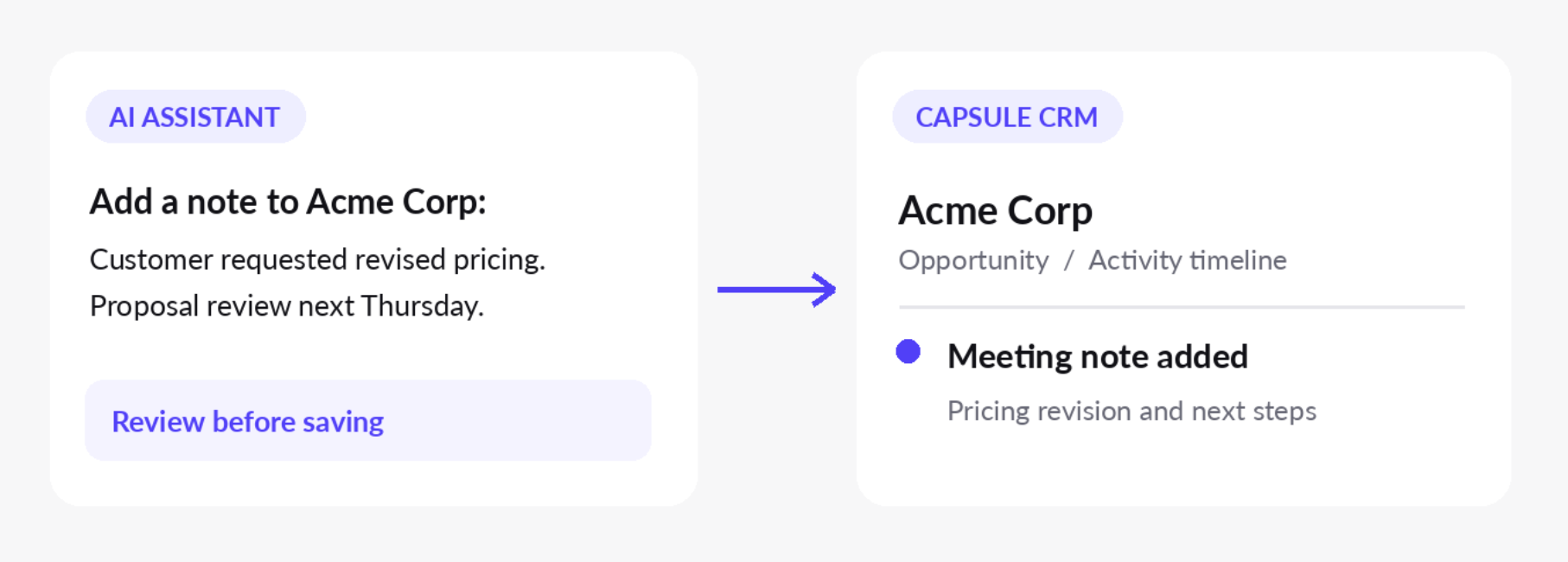
Capsule MCP supports creating notes against customer records, opportunities, and projects. After a call, you can provide your notes to an assistant and ask it to add the information to the appropriate record.
Example prompt:
"Find Acme Corp's open opportunity and add a note about today's meeting. The customer asked for revised pricing and confirmed they want to review the proposal next Thursday. Show me the note before saving."
An assistant can turn the supplied information into a CRM note, giving other team members access to the conversation history.
Longer meeting summaries can work too. You might paste notes from a discovery session and ask the assistant to organize them before recording the activity.
Keep the original source available until you've checked the summary. Details involving customer commitments deserve particular attention because an incorrect note can influence what someone says during the next meeting. Capsule's current MCP note tools don't support file attachments, so any documents that need to accompany the activity must be handled separately.

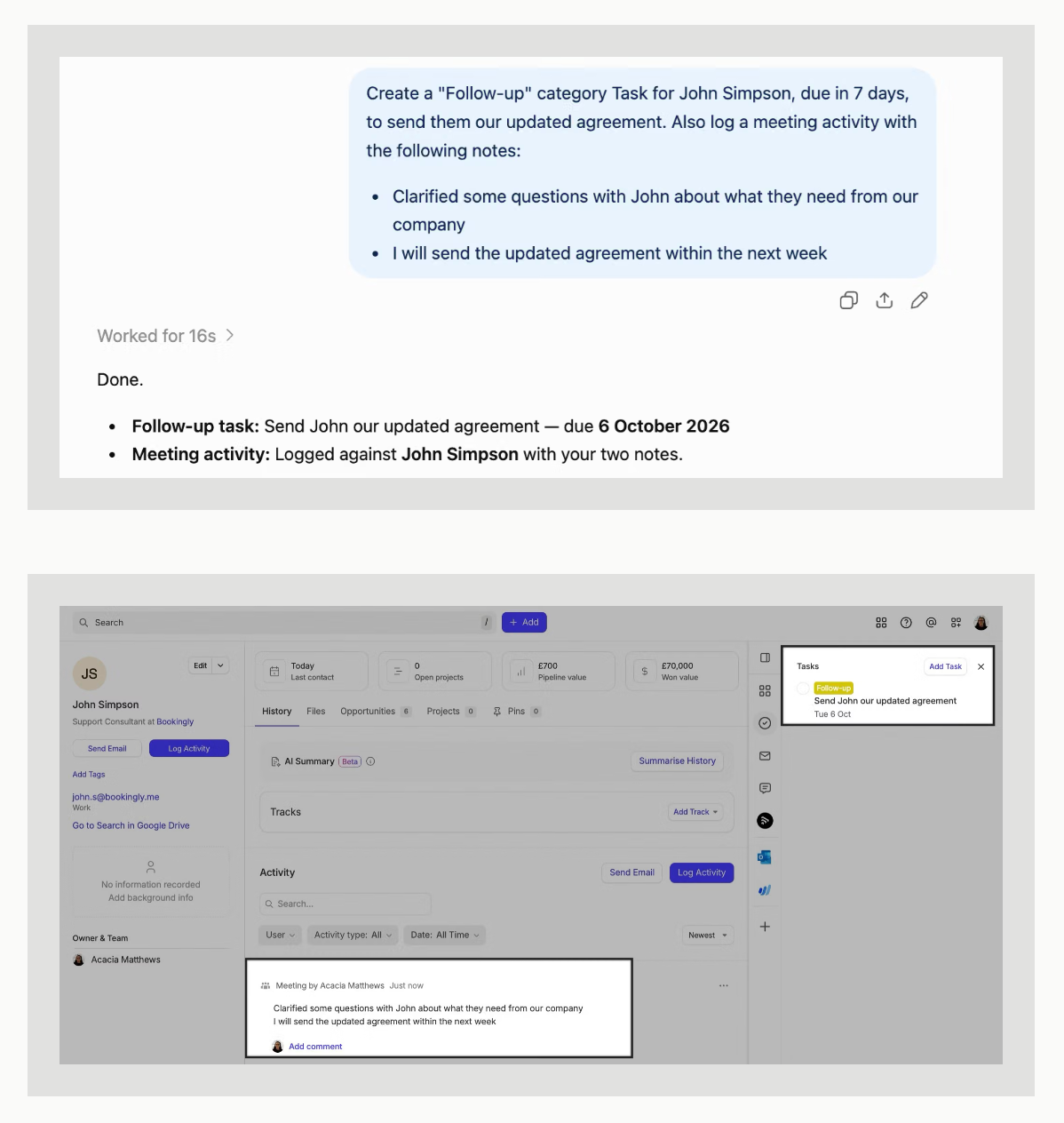
#3 Make sure agreed follow-ups become tasks
A customer asks you to send revised pricing on Thursday. You promise to get it over, finish the call and start preparing for your next meeting. Without a task in your CRM, Thursday could arrive before you remember the commitment.
Adding a reminder during the conversation is easier than trying to reconstruct your workload at the end of the week.
Capsule MCP allows connected assistants to create tasks and associate them with relevant CRM records. You can include a due date along with enough context to understand what needs doing.
Example prompt:
"Create a task linked to Acme Corp's opportunity. Remind me to send the revised proposal on October 29, 2026, and include the pricing questions from our latest meeting."
Once saved, the task appears in Capsule and can be managed through its tasks and calendar features. You can also ask your assistant to retrieve overdue tasks when planning your day, provided the connection exposes the necessary information.
Existing Capsule task management continues working normally. Employees can review their workload inside the CRM even when some tasks were created through ChatGPT.
#4 Update customer information stored in Custom Fields
Plenty of businesses use Custom Fields to record information specific to their sales process. A field might indicate a customer's renewal month or the priority assigned to an opportunity.

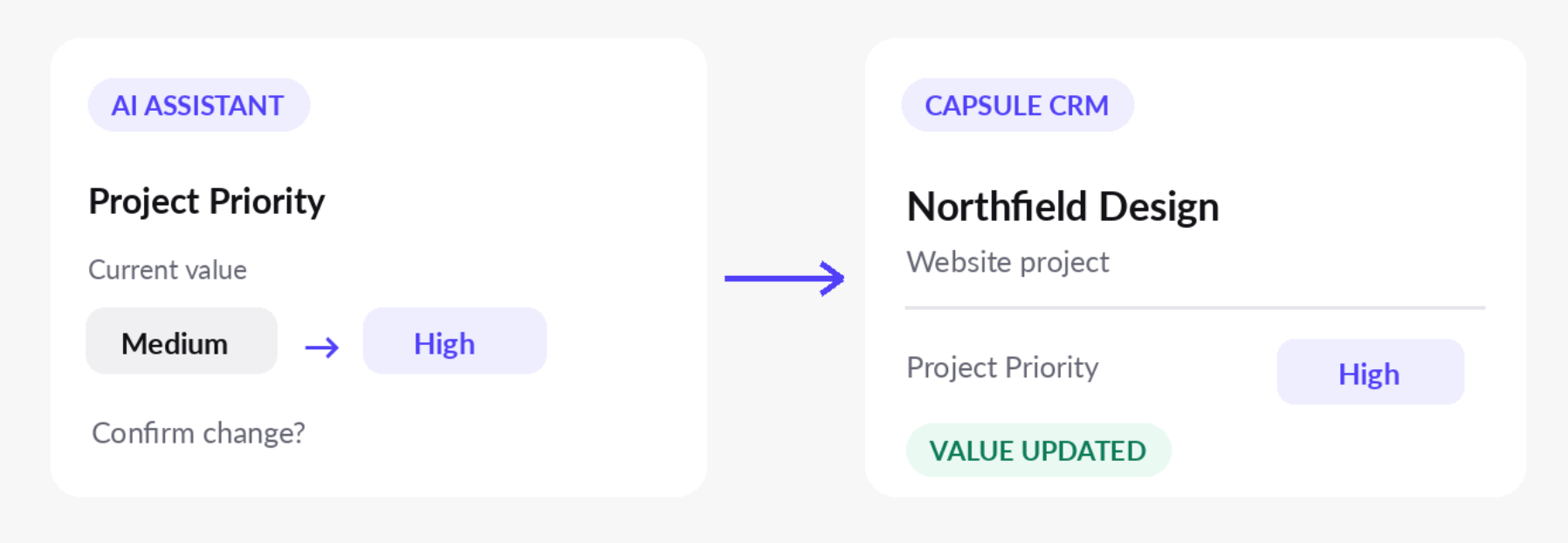
Keeping these values accurate matters when employees use them to filter records or make decisions. Capsule MCP allows connected assistants to update values in existing Custom Fields on supported record types.
Say a customer requests an urgent turnaround, and your company uses priority fields in the CRM to flag time-sensitive opportunities.
You could ask:
"Find Northfield Design's website project opportunity. Check the current Project Priority Custom Field and show me its value. If the field exists, ask before changing it to High."
Your assistant can retrieve the relevant record and request the change through the supported tool. Existing values can be overwritten, so it's worth seeing what's already recorded before approving an update.
Capsule doesn't currently let MCP clients change every field on an existing record. Core details such as names and assigned owners require another supported method, while new Custom Field definitions must be configured in Capsule before an AI assistant can use them.
#5 Find missing information before a pipeline review
Pipeline meetings can get bogged down in missing details. A deal may be nearing its expected close date with no recent activity, or key information may be missing from the record. An AI assistant can review these opportunities ahead of the meeting and flag what needs attention.
Example prompt:
"Review our open opportunities and identify any without an expected close date. Include the owner and current sales milestone for each result. Don't change any records."
The assistant can retrieve the relevant information where supported by Capsule's available MCP tools. You can then review the results with the people responsible for those opportunities.
Other questions might focus on older activity records or deals without upcoming follow-ups.
These checks don't guarantee that every identified opportunity needs correcting. A newly created deal, for example, may not have a meaningful close date yet – so reviewing the context is part of deciding whether the missing information matters.
Capsule's sales pipeline and sales analytics features remain available for structured reporting. MCP adds a conversational way to investigate particular questions using the data the connection exposes.
#6 Find customer accounts that need attention
An account may appear healthy even though its last recorded conversation was months ago. That could mean communication has stalled or the team hasn't been logging customer interactions. Either way, it's worth investigating.
Try asking:
"Find organizations without logged activity during the last 90 days. Show their open opportunities and any outstanding tasks."
A connected assistant can retrieve matching records where the available tools support the request, giving you a starting point for reviewing customer relationships.
You might discover that an account manager needs to follow up with a customer or that recent conversations haven't been recorded.
Don't assume every quiet account represents a lost opportunity. Some customers may have completed their projects or simply don't need regular contact. Activity gaps are signals to investigate, not proof that something has gone wrong.
Which CRM updates does Capsule MCP support?
Capsule's MCP server exposes specific tools for working with CRM information. Users can search records and perform selected create operations, but the connection doesn't provide unrestricted editing access.

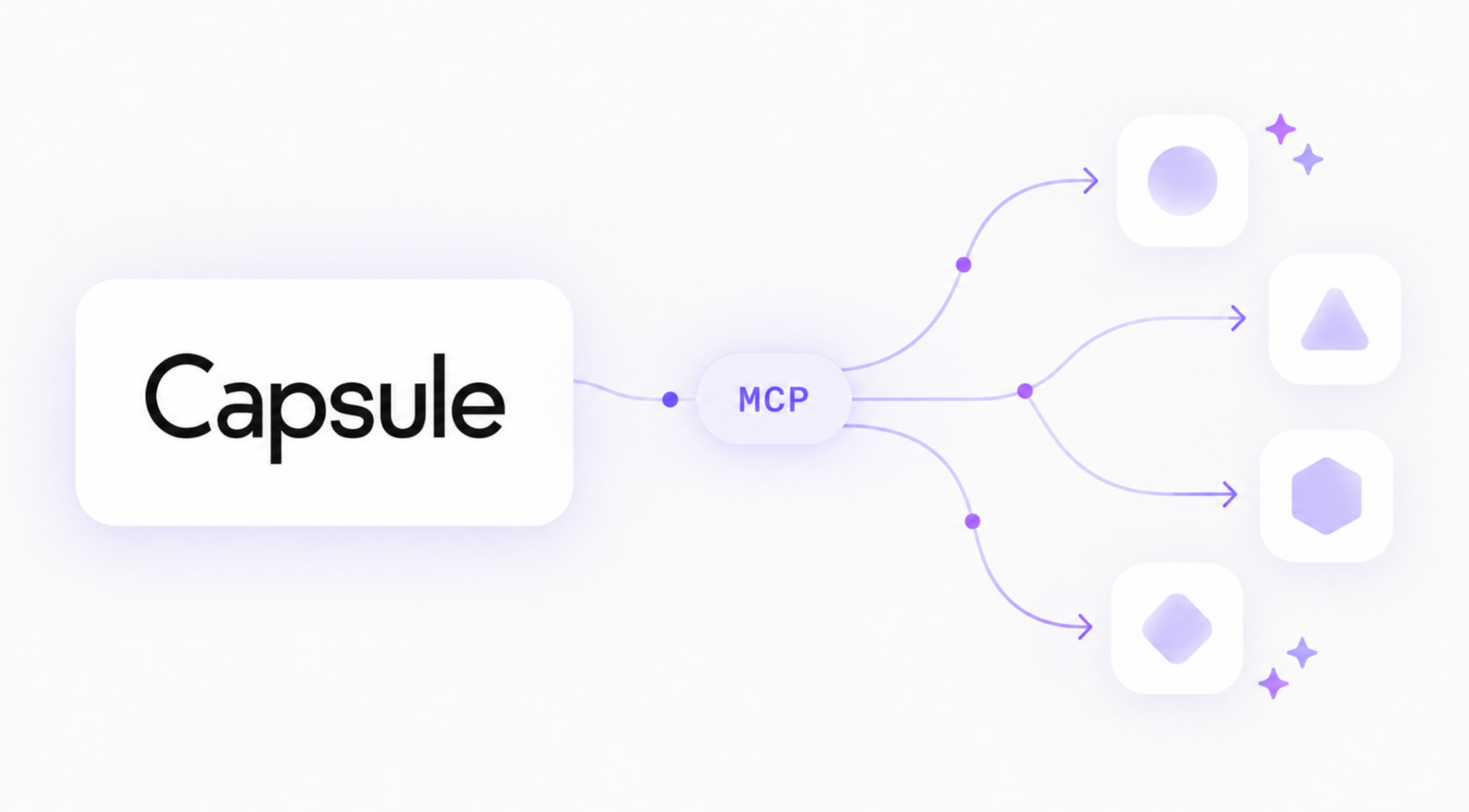
Capsule MCP supports several everyday CRM activities through a compatible AI assistant.
You can use it to:
- Search for existing people and organizations.
- Retrieve opportunities and activities.
- Create new people, organizations, opportunities and projects.
- Create follow-up tasks linked to CRM records.
- Add notes to customer records, opportunities and projects.
- Update values in existing Custom Fields.
Some actions aren't currently supported. Capsule MCP doesn't allow AI assistants to rename existing contacts, change record owners or delete CRM records. You also can't create new Custom Field definitions through the connection. Those changes need to be handled through other supported methods in Capsule.
The distinction is worth remembering when planning how your team will use MCP. You can ask an assistant to create a follow-up task after a meeting, for example, but you shouldn't assume it can modify every detail of an existing opportunity.
Access also depends on user permissions. An AI assistant connected to Capsule cannot simply retrieve information the authenticated user isn't allowed to see.
Understanding these limits helps you determine which activities are suitable for MCP and which should stay within your regular CRM processes.
You can review the available tools in Capsule's AI Connectors Tool Reference.
A weekly CRM data-quality routine your team can follow
Keeping records current shouldn't require a major clean-up before every reporting meeting.
A regular routine makes omissions easier to catch while employees still remember the original conversations. MCP can support those checks without requiring a manager to examine every account manually.
A simple routine can help your team catch missing information before it affects customer relationships or pipeline reporting.
- At the start of the week, review open Opportunities and overdue tasks. Check whether important follow-ups have been assigned and whether any commitments still need attention.
- After customer meetings, use your assistant to record conversation notes and create agreed follow-up tasks. Review the saved details to confirm they reflect what was discussed.
- When adding new leads, search Capsule for an existing contact before creating another record. Check both the person's details and their organization to avoid duplicates.
- Before pipeline reviews, look for Opportunities with missing close dates or incomplete information. Ask the relevant salespeople to confirm which records need updating.
- At the end of the week, review customer accounts with no recent logged activity. Check whether important conversations are missing from Capsule or whether someone needs to follow up.
You don't have to complete every check manually. Where the MCP connection supports the necessary operations, you can ask an AI assistant to retrieve the relevant records and highlight anything that deserves a closer look.
You can adapt the schedule to your sales cycle. A company handling a small number of high-value accounts might review activity more frequently, while a business with shorter transactions may concentrate on task creation and contact entry.
Regular CRM maintenance doesn't need to become another meeting. Employees can handle much of the work as part of their normal day.
Capsule's workflow automation can manage predefined actions when opportunities or projects reach particular stages. MCP serves a different purpose. It allows users to request supported actions or investigate CRM records through an AI assistant, with no need to create a separate automation for every task.
What should you check before approving an AI update?
An assistant completing a request successfully doesn't always mean the information is correct.
Before saving a change, check the intended record and make sure the new information matches the original conversation. Duplicate contacts deserve attention, particularly when several people share similar names.
Dates can cause problems, too. A request to schedule a follow-up "next Thursday" may need clarification, especially near the end of a week. Giving an exact calendar date removes the ambiguity.
Custom Field updates should be reviewed before existing values are replaced. If important information needs to be retained, make sure you've preserved it.
After the assistant completes the operation, open the resulting record or ask it to retrieve the saved details. A quick confirmation can prevent mistakes before someone else contacts the customer.
How to get started with Capsule MCP
Capsule provides an official ChatGPT integration built on its MCP server.


Once connected, users can retrieve customer information through ChatGPT and request supported actions, including creating contacts or follow-up tasks. The connection uses the authenticated user's Capsule permissions.
Capsule AI Connectors are available on Growth, Advanced and Ultimate plans. ChatGPT access may also depend on the user's plan and workspace configuration.
Getting started doesn't require building your own server. Capsule's official integration provides a connection process through ChatGPT, with authorization handled through your Capsule account.
If you're ready to connect the two tools, follow our guide to connecting ChatGPT to Capsule CRM.
Other options include Capsule's Claude integration and custom connections for compatible MCP clients, depending on the setup you want to use.
Can AI keep your CRM updated automatically?
MCP gives AI assistants access to supported CRM operations, but continuous monitoring and automatic corrections require additional setup. Most of the workflows we've covered begin with a user asking a question or requesting an action.
More advanced automation may need additional integrations or scheduled workflows. What you can do through an AI assistant also depends on the MCP server. Capsule currently supports creating several types of records and updating Custom Field values, so you'll still need to make some changes directly in the CRM.
Of course, keeping CRM data accurate also comes down to how your team works. Everyone needs to keep their records up to date and know who's responsible for what. If you're just getting started with Capsule MCP, pick one task your team handles regularly, such as adding meeting notes or creating follow-up tasks. Try it a few times, review the results, and see how well it fits into your daily routine.
Explore Capsule's ChatGPT integration to see how MCP can fit into your sales workflow.